Complete Guide
Diligent Beaver
The Windows Calculator you already know, done right — a persistent history you can click to reuse, a compact always-on-top mode, and every result copied to the clipboard automatically.

1. What Is Diligent Beaver?
The Windows Calculator does the job, but it forgets everything the moment you close it, it can't stay on top of your other windows, and pasting a result somewhere means an extra copy step every time. Diligent Beaver is a small desktop calculator that fixes exactly those rough edges — without turning into a spreadsheet or a scientific-graphing tool you'll never fully use.
It's a faithful clone of the "Standard" mode you already know: the same memory keys, the same order of operations, the same CE-versus-C behavior. On top of that it keeps a history you can click to reuse, a compact always-on-top mode for when you just need a strip of buttons in the corner, and it copies every result to the clipboard so it's ready to paste the instant you finish.
It's built for the knowledge worker who runs a dozen quick calculations a day and doesn't want to break flow opening a browser tab or hunting for the system calculator. Diligent Beaver is free — no account, no cloud, no network beyond checking for its own updates.
2. Installation
Go to thestromboliproject.com/tools/diligent-beaver/ and download the installer — Windows, or the Linux build (.deb or AppImage).
Double-click the installer and follow the prompts. No extra components are required.
Find it in your Start menu (search for Diligent Beaver – Calculator). A short splash with the app's own sound appears, then the calculator window opens ready to use. If you'd rather start in silence, click the speaker button at the right end of the toolbar; it remembers your choice.
3. First Launch
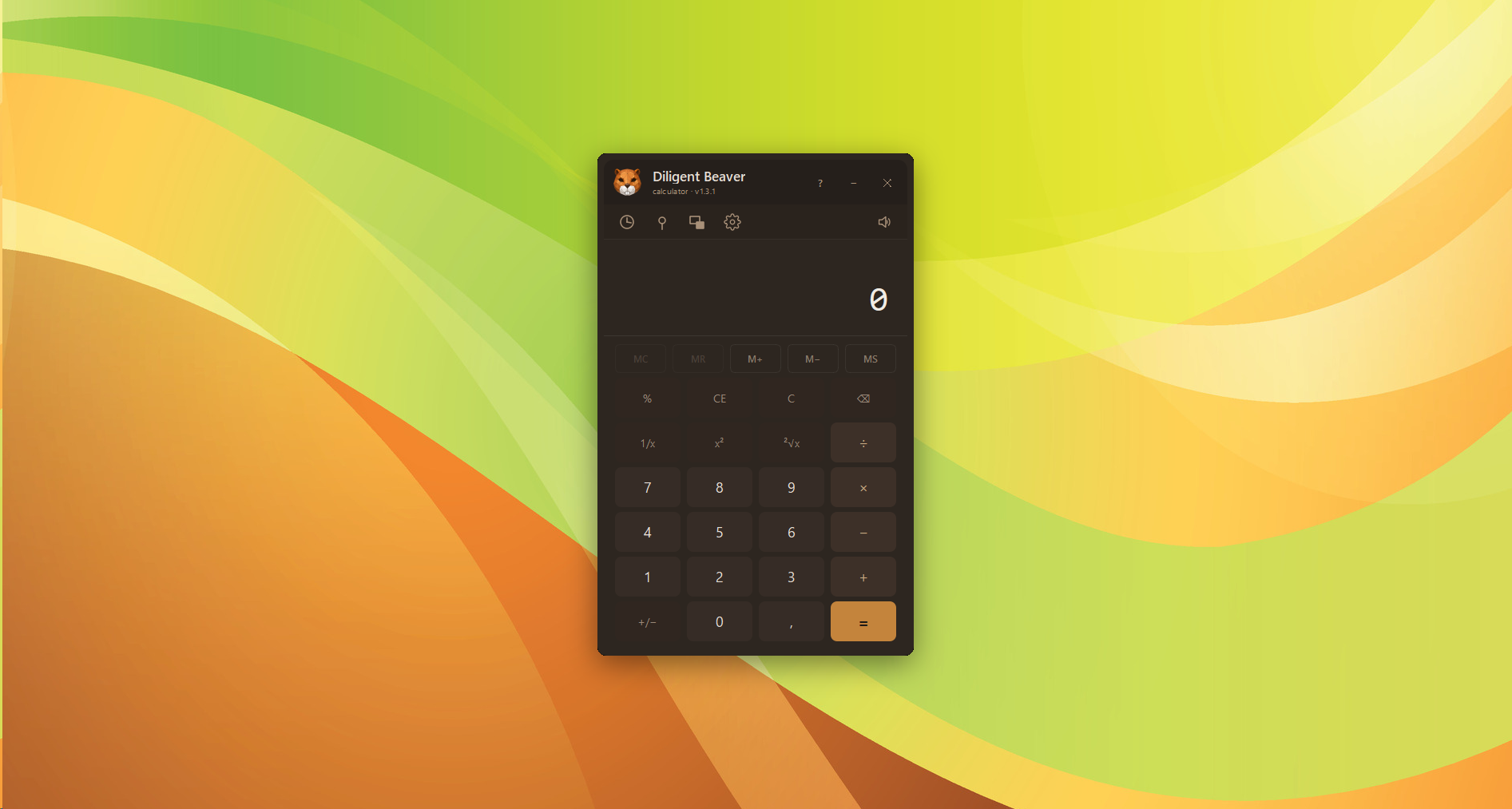
Diligent Beaver opens as a single, fixed-size window with rounded corners and no system title bar of its own. Drag it around by its slim title bar; there's no maximize button because a calculator doesn't need one. Closing the window quits the app.
The title bar toolbar
Just under the title bar sits a small strip of three toggle buttons — the controls that make Diligent Beaver more than a plain keypad:
- History (clock icon) — swaps the keypad for your running history and back again.
- Pin (thumbtack icon) — keeps the window always on top of your other windows.
- Compact (small-rectangles icon) — shrinks Diligent Beaver into a tiny always-on-top overlay in the corner of your screen.
4. Core Workflow
Diligent Beaver works like the Standard Windows Calculator: sequential arithmetic with a running accumulator and a pending operator — not an expression parser. You type a number, an operator, the next number, and press =.
Use the on-screen keys or your keyboard. The decimal separator is the comma (,), Spanish-locale style; the display groups thousands with dots.
Choose ÷, ×, −, or +. Diligent Beaver holds the running total and waits for the next operand.
= computes the result. Press = again to repeat the last operation on the result — the same convention as Windows Calculator (e.g. 2 + 3 = gives 5, = again gives 8).
Every time you press =, the result is copied to the clipboard automatically — switch to any app and paste, no extra step.
Div/0. Press any key afterwards and the calculator resets, ready for the next calculation.
5. Memory Keys
The top row is a single-value memory register — exactly the five keys from Windows Calculator's Standard mode. There's no multi-value memory list; the register holds one number at a time.
💾 MS
Memory Store — save the current value into memory, replacing whatever was there.
➕ M+
Add the current value to the number in memory.
➖ M−
Subtract the current value from the number in memory.
📤 MR
Memory Recall — bring the stored number back into the display.
🧹 MC
Memory Clear — empty the register.
6. Functions & Editing
Beyond the four operators, Diligent Beaver carries the small set of immediate functions and edit keys from Standard mode — no more, no less.
↩️ CE vs C
CE clears only the number you're currently typing, keeping the pending operation. C clears everything and starts over.
⌫ Backspace
Deletes the last digit you entered, one at a time.
% Percent
Computes a percentage in the context of the current operation, the Windows-Calculator way.
🔁 1/x
Reciprocal of the current value, applied immediately.
² x²
Squares the current value, applied immediately.
√ ²√x
Square root of the current value. Negative inputs are refused safely rather than erroring out.
± +/−
Flips the sign of the current value between positive and negative.
7. History
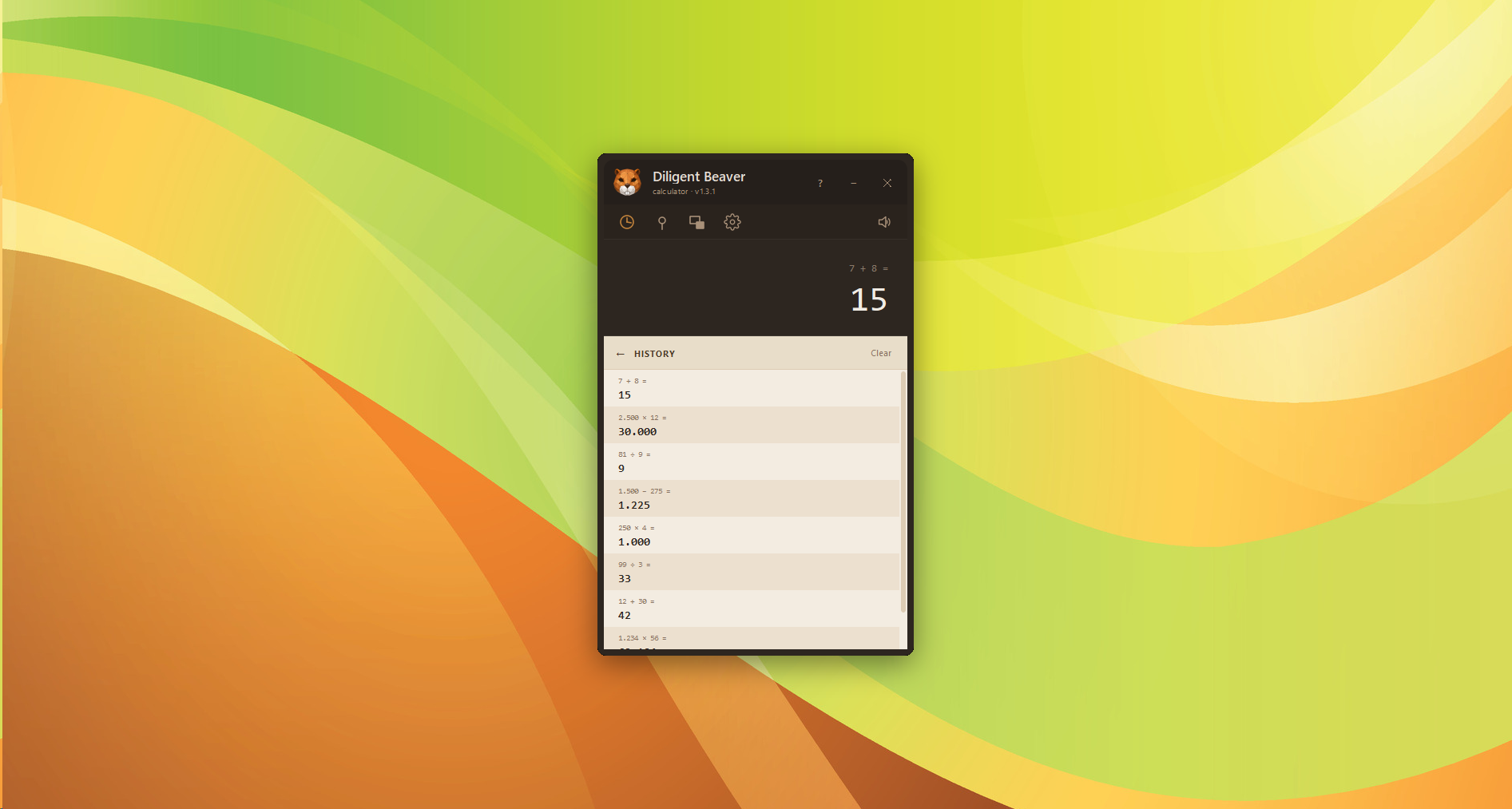
Press the History toggle in the title-bar strip to swap the keypad for a full-window list of everything you've calculated. Press it again to return to the keys. History is a view, not a side panel — it takes over the window while it's open.
Each entry is stored as expression = result, and the list persists between sessions — close Diligent Beaver, reopen it tomorrow, and your history is still there. A Clear button empties it when you want a clean slate; an empty list simply reads "There's no history yet."
Click to reuse a result
Click any entry in the history to recall its result back into the calculator as a new starting value — no retyping a long number you already worked out.
8. Compact Overlay
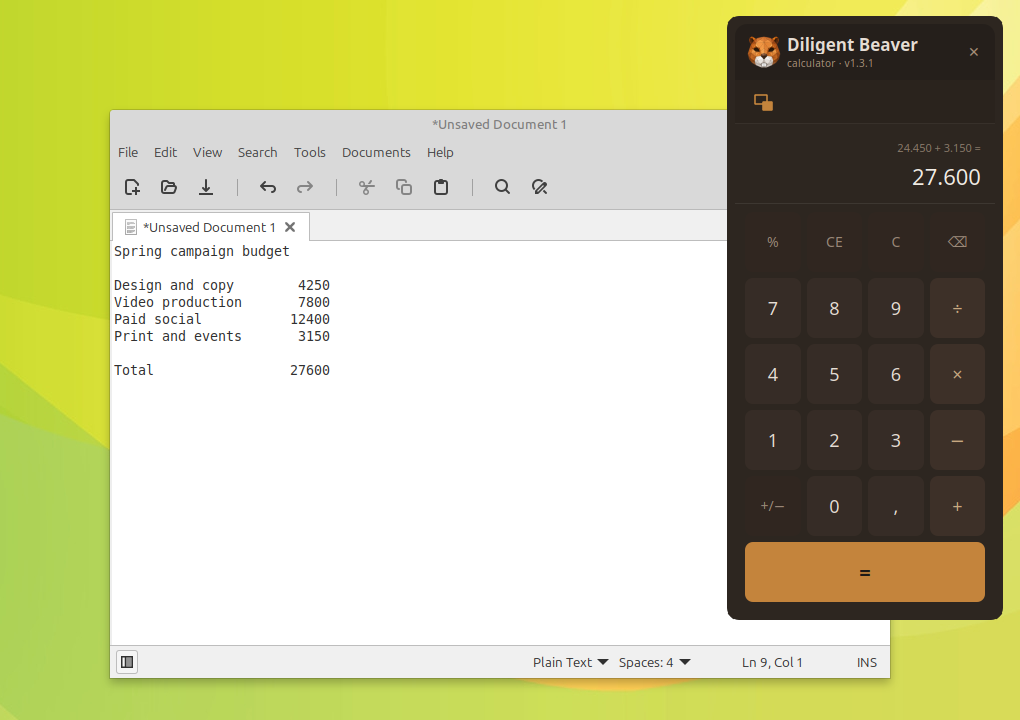
The Compact toggle shrinks Diligent Beaver into a small overlay — a narrow window that anchors to the top-right of your screen and stays always on top, so it floats over whatever you're working in. It's for the moments you just need a quick strip of keys without giving up screen space.
Compact mode is deliberately stripped down: an arithmetic-only keypad (digits, the four operators, equals, and the basic edit keys). The memory row, the immediate functions (1/x, x², √x) and the history view are hidden here — switch back to the full window when you need them. The title bar reduces to just a close button.
Leaving compact mode restores the full window exactly where it was, including whether Pin was on.
9. Pin & Clipboard
Always on top
The Pin toggle keeps the full window above your other windows, so it doesn't disappear behind the app you're copying numbers from. (Compact mode is always on top by design.)
Copy and paste numbers
- Copy is automatic. Every time you press =, the result lands on the clipboard, ready to paste.
- Paste a number in. Press Ctrl V to pull a number from the clipboard into the calculator — Diligent Beaver extracts the first number it finds and accepts either a comma or a dot as the decimal separator.
10. Settings
The gear at the right of the icon bar opens a small Settings window. Changes apply when you press OK; Cancel or Esc leaves everything as it was.
| Setting | What it does |
|---|---|
| Interface size | Normal, Large (+30%) or Extra large (+50%). The same calculator with bigger text, keys, icons and history rows — nothing is hidden or simplified. It applies straight away, with no restart, and it is remembered next time. |
11. Tips
- Reach for the comma, not the dot. The decimal separator is , — the numpad's . key isn't mapped to the decimal.
- Repeat with equals. Press = again after a result to apply the last operation once more — handy for running increments.
- Pin it before a long copy session. Turn on Pin so the calculator stays visible while you tab between it and your data.
- Click history instead of retyping. A long result from ten minutes ago is one click away in the history view.
- Use compact mode as a desk accessory. Leave the compact overlay running in the corner for quick sums without it dominating your screen.
For the full list of keyboard shortcuts, see Keyboard Shortcuts ↓.
12. FAQ
Does it have scientific functions — trigonometry, logarithms?
No. Diligent Beaver mirrors the Standard mode: percent, 1/x, x², and square root are the only functions beyond the four operators. There's no scientific or programmer (binary/hex/octal) mode.
Can I type a whole expression like 2+3*4 at once?
No. It's a sequential calculator with a running accumulator, not an expression parser — enter one number and one operator at a time, exactly like Windows Calculator's Standard mode.
Is my history saved if I close the app?
Yes. History persists between sessions and is written safely to disk. Use the Clear button to empty it whenever you want.
Does it need an account or an internet connection?
No account, no cloud, no sign-in. The only time it touches the network is to check whether a newer version of Diligent Beaver is available.
Can it convert currencies or units?
No. Diligent Beaver is a calculator, not a converter. Currency and unit conversion are out of scope on purpose.
Is it free?
Yes, completely free.
13. Keyboard Shortcuts
Numbers & operators
| Action | Key |
|---|---|
| Digits | 0…9 |
| Decimal separator | , |
| Add / subtract | + / - |
| Multiply / divide | * / / |
| Equals | Enter or Return |
Editing & clipboard
| Action | Key |
|---|---|
| Backspace (delete last digit) | Backspace |
| Clear all (C) | Esc |
| Paste a number from clipboard | Ctrl V |
| Copy the result | automatic on = |
Ready to install?
Free download. No account, no cloud, no noise.
Download Diligent Beaver →