🌋 The Stromboli Project
Free 🪟 Windows

Clever Cat Notepad

A tabbed text editor that opens the file, not the project.

For the person who opens a YAML, a JSON or a Markdown note twenty times a day: it starts in about a second, colours the file by its own extension, and the next time you launch it your tabs are already there.

No account, no email, no licence key. Clever Cat is free, and it stays free: nothing to activate, nothing that expires.

Windows and Linux desktop builds

Windows may show a SmartScreen warning on first launch — click More info → Run anyway.

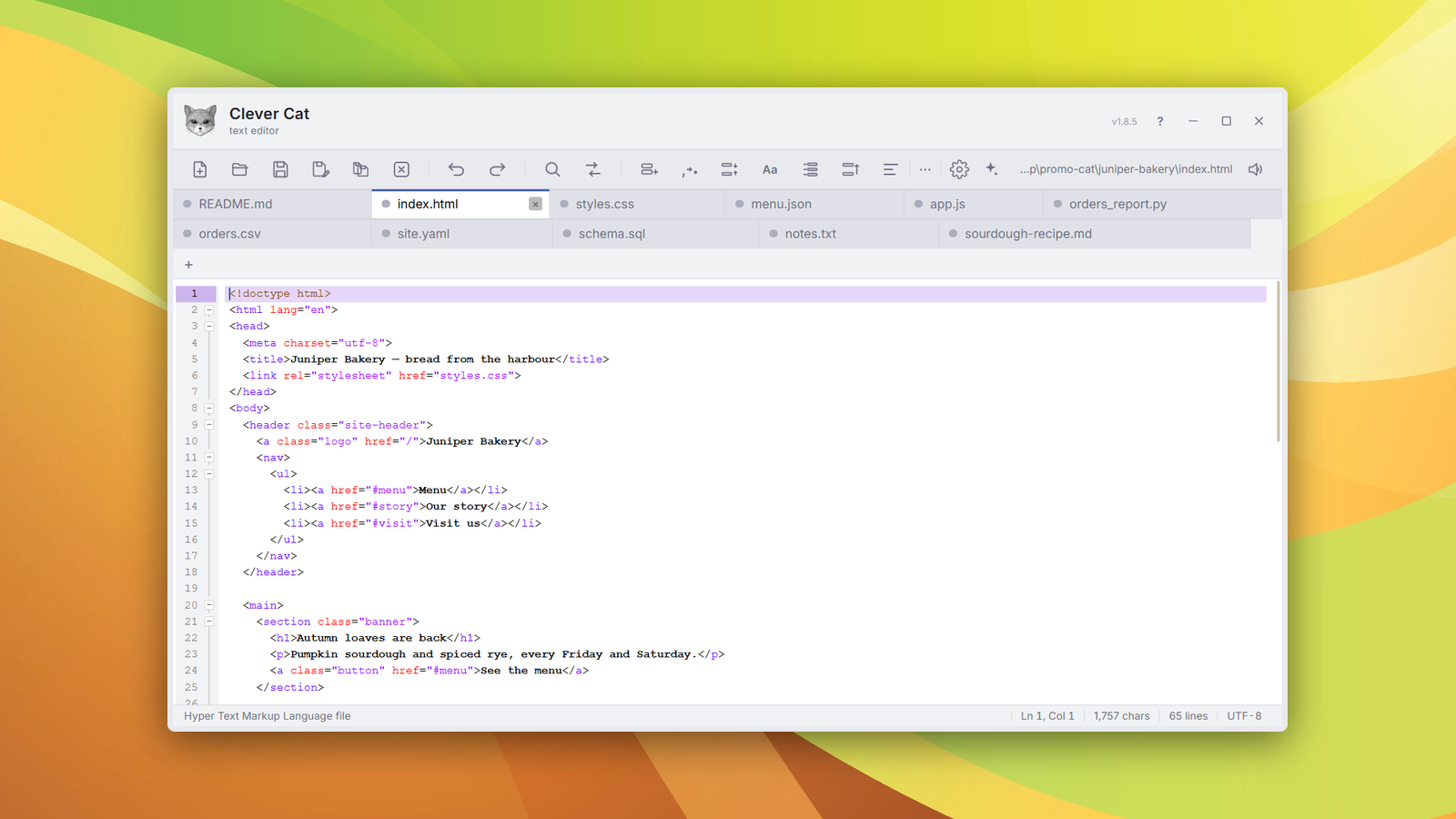
Clever Cat's main window with two rows of file tabs, a text file open in the editor and the status bar below.
Open it and your tabs are already there, each file coloured by its type. Ready in about a second.

Clever Cat is a light tabbed editor: colours each file by type, reopens right where you left it, and adds a touch of optional AI — without the complexity of other editors.

Features

Everything the editor does, before you open a file in it.

Tabs, and the session that survives the night.

  • Reopens the same files, tab order and active tab
  • Cursor and scroll position restored too
  • Reopen the last closed tab (Ctrl+Shift+T)
  • Drag to reorder, middle-click to close
  • Ctrl+Tab, Ctrl+PageUp/Down, Ctrl+1…9

Highlighting for 13 formats, nothing to install.

  • Markdown, JSON, YAML, XML, HTML, CSS
  • JavaScript, TypeScript, Python, SQL, PHP, Rust
  • Picked from the file extension, automatically
  • Recalculated when you Save As
  • Line numbers and the active line marked

Find, replace, and jump.

  • Regex and case sensitivity
  • Find All: every match listed and clickable
  • Go to line (Ctrl+G)
  • Filterable recent files (Ctrl+Shift+O)
  • Command palette for everything else (Ctrl+K)

The editing moves you were doing by hand.

  • Duplicate a line, move it up or down
  • Commas into dots for European numbers
  • Delete empty lines, fix capitals after a full stop
  • Join wrapped lines back into a paragraph
  • Column selection with Alt+drag

HTML, folded and paired.

  • Fold whole blocks from the left margin
  • The tag at the cursor and its pair both highlighted
  • Tidy HTML re-indents the file (Ctrl+Shift+F)
  • Deterministic: no AI involved

AI that stays off until you want it.

  • Spelling, rewriting, tone, lists, summary, translation
  • Explain code and find errors in code files
  • Always a preview — it never overwrites on its own
  • Technical terms kept, and checked afterwards
  • Answers in the language of your text; if not, it retries once, then shows an error instead of replacing anything
  • Your own Google Gemini key, stored on your machine

It notices the world outside the window.

  • File changed on disk? It offers to reload
  • Drag and drop files onto the window
  • Opens from Explorer's Open with
  • One instance: no second copy of the same file
  • URLs in plain text are clickable

Yours, on your machine.

  • No account, no email, no licence key
  • Free, and nothing in it expires
  • Interface size: Normal, Large or Extra large
  • One click mutes every sound, startup meow included
  • Session and settings stored on your disk
  • Windows, plus Linux packages
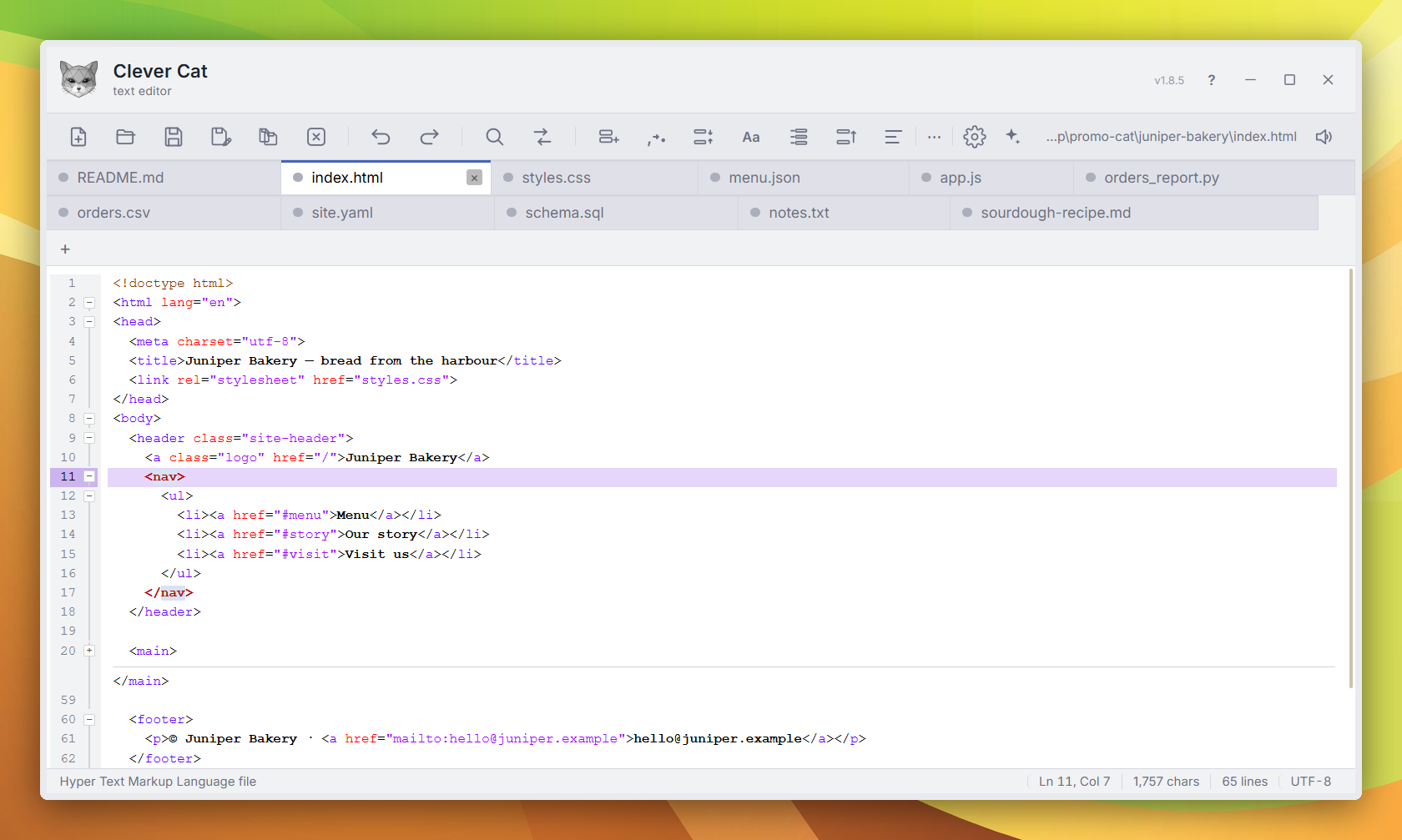
An HTML file in Clever Cat with blocks folded from the left margin and the tag at the cursor highlighted with its closing pair.
Fold away the blocks you’re not working on and see at a glance which tag closes which.

What you get

Three things it does that a plain text box does not.

Your session survives the reboot

Close it with eight files open and come back tomorrow: the same tabs, the same one in front, the cursor and the scroll exactly where you left them. Reopen the last tab you closed with Ctrl+Shift+T.

The file explains itself

Highlighting comes from the extension — Markdown, JSON, YAML, HTML, CSS, JavaScript, TypeScript, Python, SQL, PHP, Rust, XML and plain text — with nothing to install. In HTML you fold a whole block from its tag, and the matching tag lights up when the cursor sits inside its pair.

Edits across the file, not one line at a time

Find and replace with regular expressions and a clickable list of every match, a command palette on Ctrl+K, a rectangular selection with Alt+drag, and text macros: drop the empty lines, join wrapped lines back into one paragraph, turn commas into decimal points.

The one thing

Clever Cat is the Swiss Army knife of text editors. It’s lightweight, opens fast, automatically restores the tabs from your last session, and highlights the most common formats out of the box, with nothing extra to install. A few macros and a bit of AI. :)

— Javier, The Stromboli Project
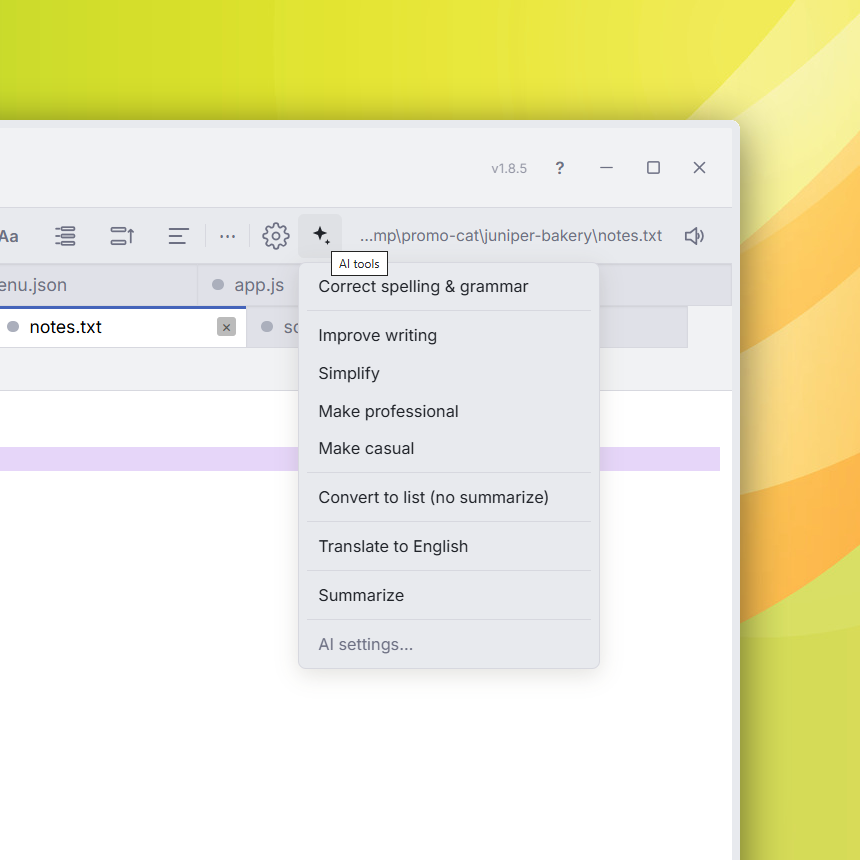
Clever Cat's AI menu open from the toolbar: correct spelling and grammar, improve, simplify, change the tone, translate or summarize the selected text.
Select some text and fix the spelling, change the tone, translate it or sum it up — without leaving the editor.

Where it fits

The window you open when the work is one file, not a project.

It is the right tool when…

  • you need to read a config file, not load a workspace
  • half a dozen loose files stay open all day and you switch between them with Ctrl+Tab
  • a file changed on disk while you had it open, and you want to be asked before anything is overwritten
  • you opened it from Explorer with Open with and it should land in the window you already have, not in a second copy
  • the next launch has to put you back where you were, without you saving a workspace first

What it needs

  • Windows: the WebView2 runtime, already installed on Windows 11
  • Linux: experimental packages, .deb and AppImage — the version line in the header says which build is which
  • macOS: no build. This is a Windows and Linux desktop app
  • Nothing else: no account, no key, no first-run configuration
  • The AI actions are optional and off by default: they need your own Google Gemini key, and the editor is complete without ever switching them on

How it goes

Four moves, from the file to the next morning.

Step 1 · Open Drag the files onto the window, send them from Explorer with Open with, or press Ctrl+Shift+O for a filterable list of recent files. A file that is already open just gets its tab focused instead of a duplicate.
Step 2 · Read The highlighting arrives with the file. On HTML, collapse the parts you are not reading from the margin and follow the guide line down to where the block ends.
Step 3 · Change Ctrl+K runs any action without leaving the keyboard. Find and replace takes regular expressions and lists every hit; Ctrl+G jumps to a line; the status bar keeps the file type, the character count and the cursor position in view.
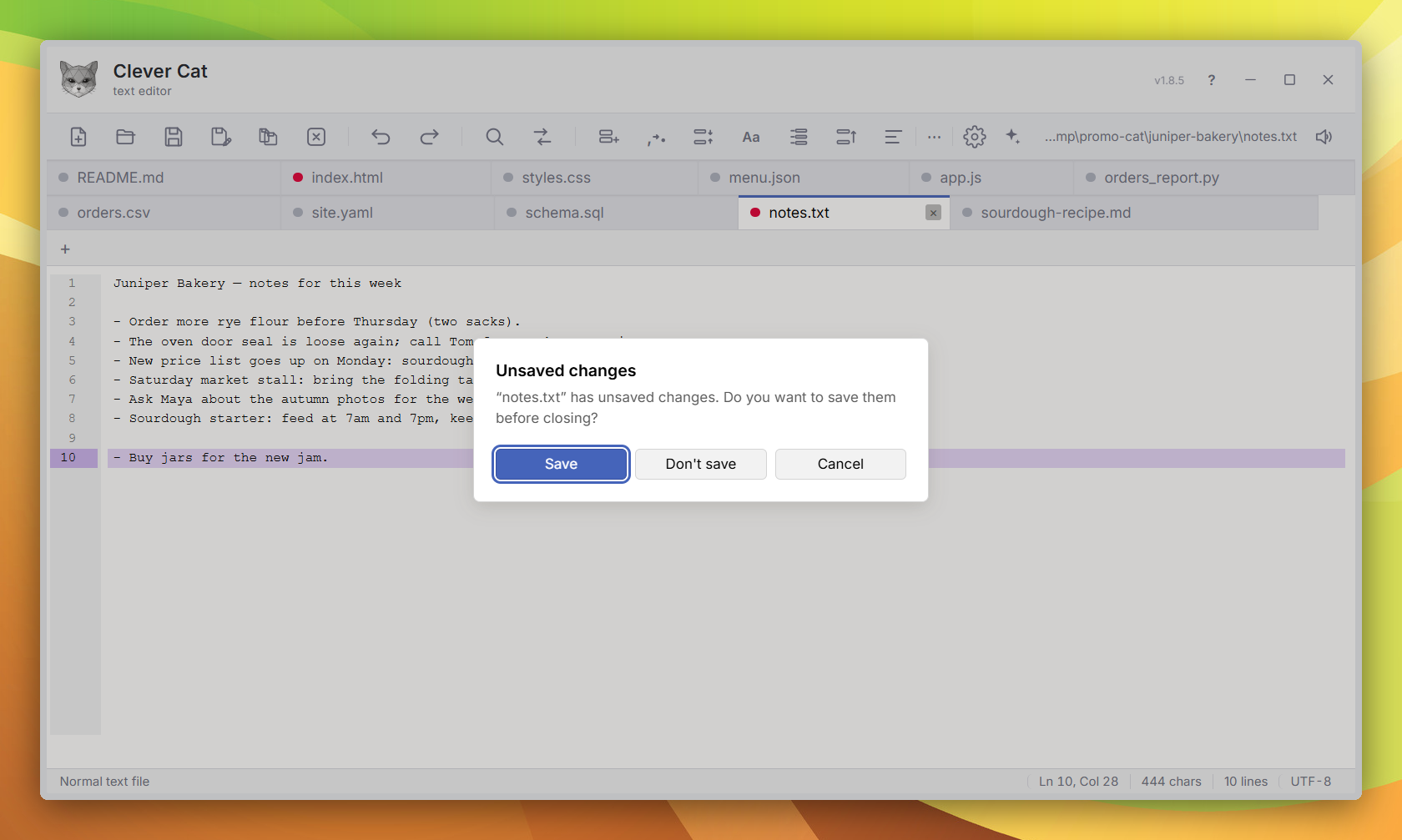
Step 4 · Leave Ctrl+S saves, Ctrl+Alt+S saves as, Ctrl+Shift+S saves them all. Closing a tab with changes asks Save, Don't save or Cancel — and tomorrow the session opens itself, so there is no step five.

Compared

Two editors people already open for this, and where Clever Cat differs.

Notepad++ is the free Windows veteran; Sublime Text is the paid, polished one. The rows below only show what actually separates the three — the things all of them do the same way are not a reason to choose any of them. Code editors that open a whole project, like VS Code, are a different kind of tool and are not in the table.

Clever Cat compared with Notepad++ and Sublime Text
Clever CatFree · closed source Notepad++Free · open source Sublime TextPaid · closed source
What it does
Tabs and cursor restored on next launch ✓On by default ✓Once enabled in Preferences ✓Via the hot_exit setting
AI actions on the text you select ✓Off by default, your own Gemini key ✕Not built in ✕Not built in
What it costs
Price Free Free $99 personal, one-time
A version you can keep for free ✓The whole editor ✓The whole editor ✕“A license must be purchased for continued use”
Updates included for as long as it exists ✓ ✓ ✕3 years, then an upgrade
What comes with it
Part of a set that looks and behaves the same ✓One of the Animal Tools ✕Standalone product ✕Standalone product
Linux build from the same maker ✓Experimental packages ✕ ✓
macOS build ✕ ✕ ✓
What it leaves out on purpose
Plugins and packages —No plugins, no terminal, no Git ✓Plugins Admin ✓Package system
Open source ✕ ✓GPL v2 ✕

✓included✕not available—left out on purpose

Comparison based on the published pages of each product — notepad-plus-plus.org and its user manual, sublimetext.com and sublimehq.com — verified 2026-09-26, against Notepad++ as distributed and the Sublime Text 4 personal licence. Features and prices change: check their sites for current details. The Stromboli Project is an independent project, not affiliated with, endorsed by or sponsored by the Notepad++ project or Sublime HQ Pty Ltd. All product names are trademarks of their respective owners.

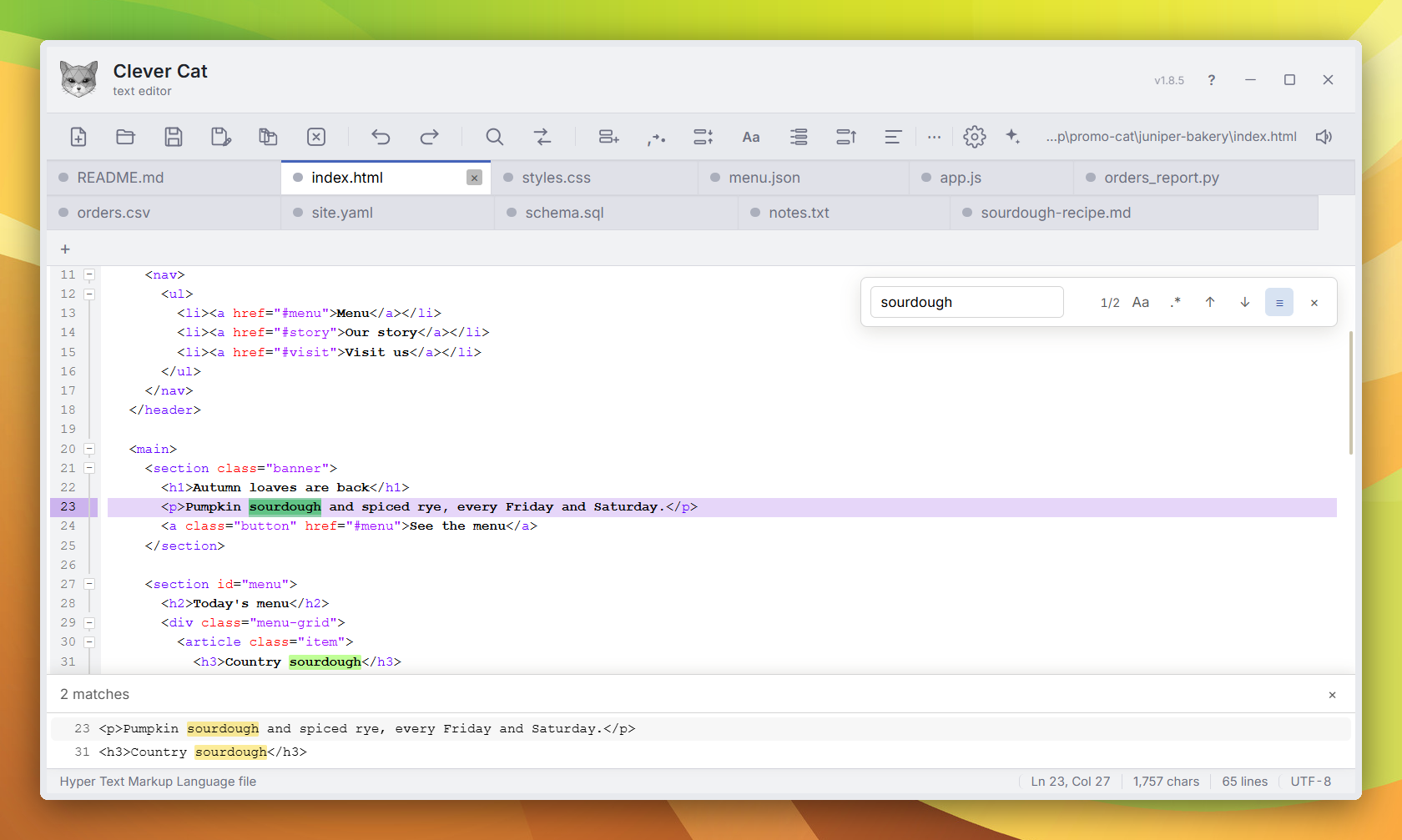
Clever Cat's find bar over an HTML file, with the list of every match below the editor.
Find and replace across the whole file, regular expressions included, with every match listed below.

Get it

One installer, and the first file is already open.

No project to create, no workspace to save, no sign-in screen between you and the text. If you later want the file list, the version of every build and the other systems, the downloads centre has them.

Who it is for

People whose work is the text, not the tooling.

The technician checking a configuration file at eleven at night. The writer who keeps notes in Markdown and a scratch file of half-finished lines. Anyone who wants the editor open before they have finished letting go of the mouse.

The guide walks through the same thing at a slower pace: first launch, tabs, search, the HTML tools and the optional AI actions.

Read the complete guide →

What it leaves out

The short list is the point.

  • No autocompletion: it is an editor, not an IDE
  • No terminal and no Git panel
  • No plugin system to install, update or repair
  • No theme picker in the interface
  • No cloud, no sync and no account — your files stay where they are

Two known edges, said out loud: the highlighting of an open tab only changes if you use Save as, and the Print Screen integration with Flameshot works on Linux only.

In the app

More screenshots

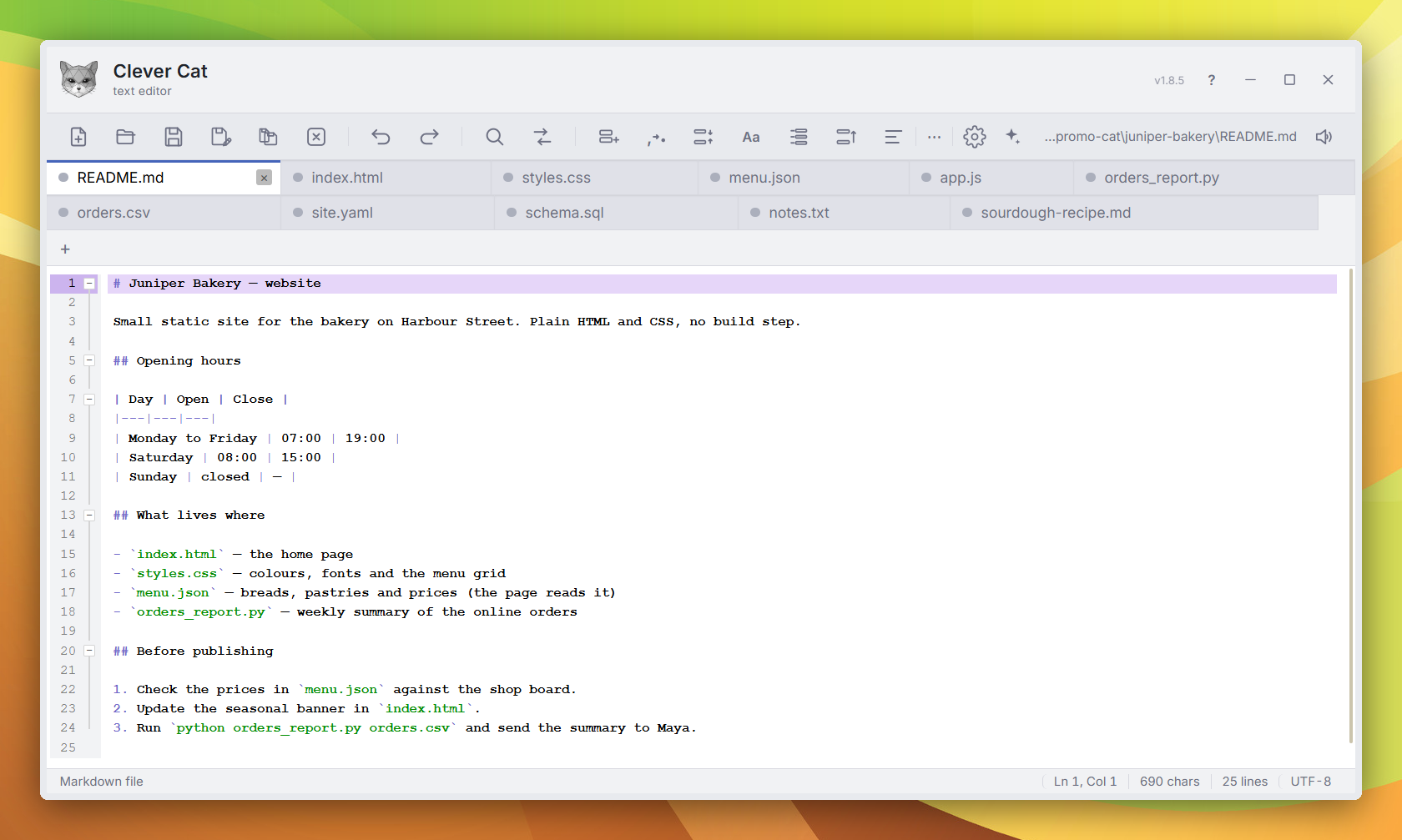
A Markdown README with its headings, table and lists coloured, one tab among eleven
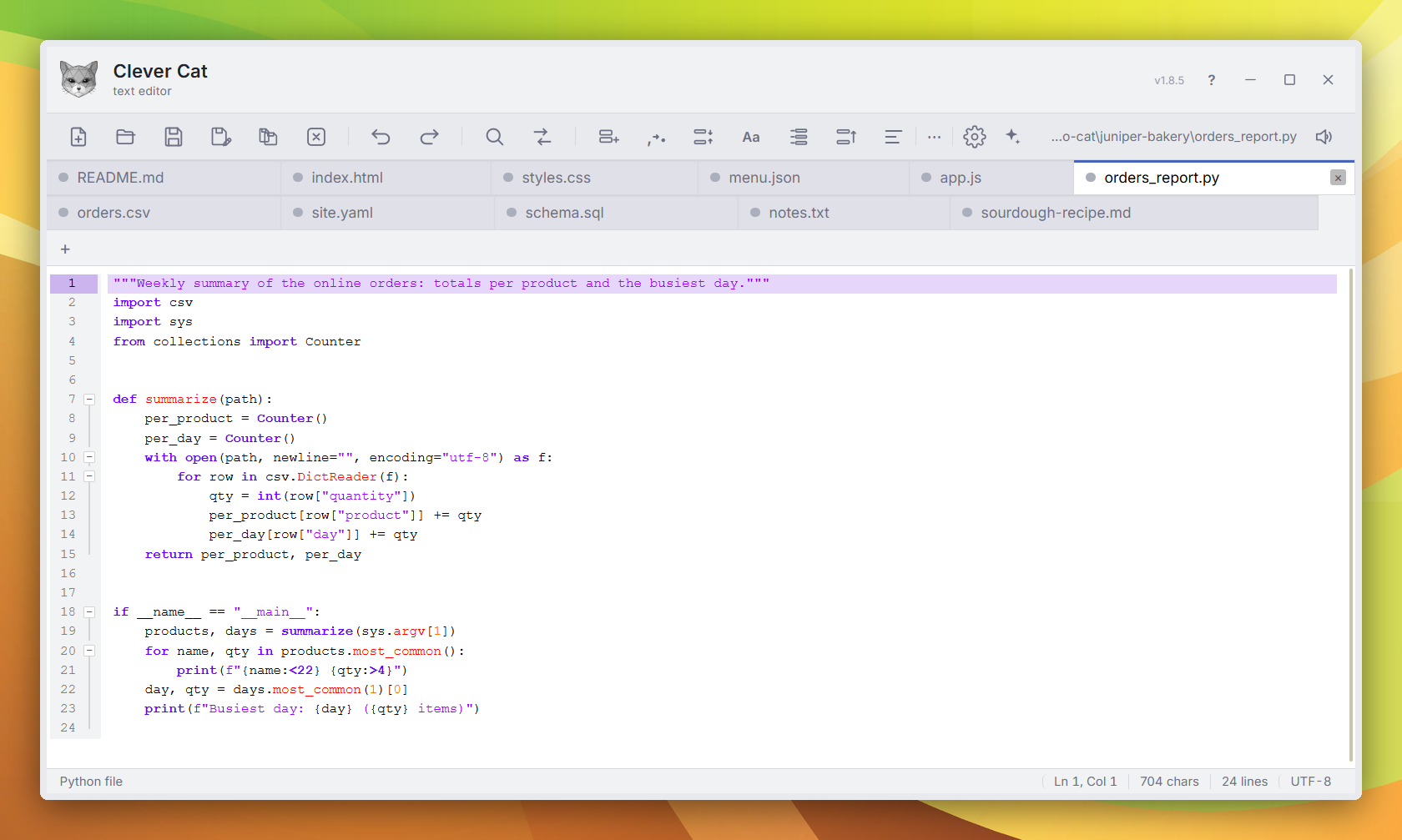
A Python script coloured by its extension, with the file type and position in the status bar
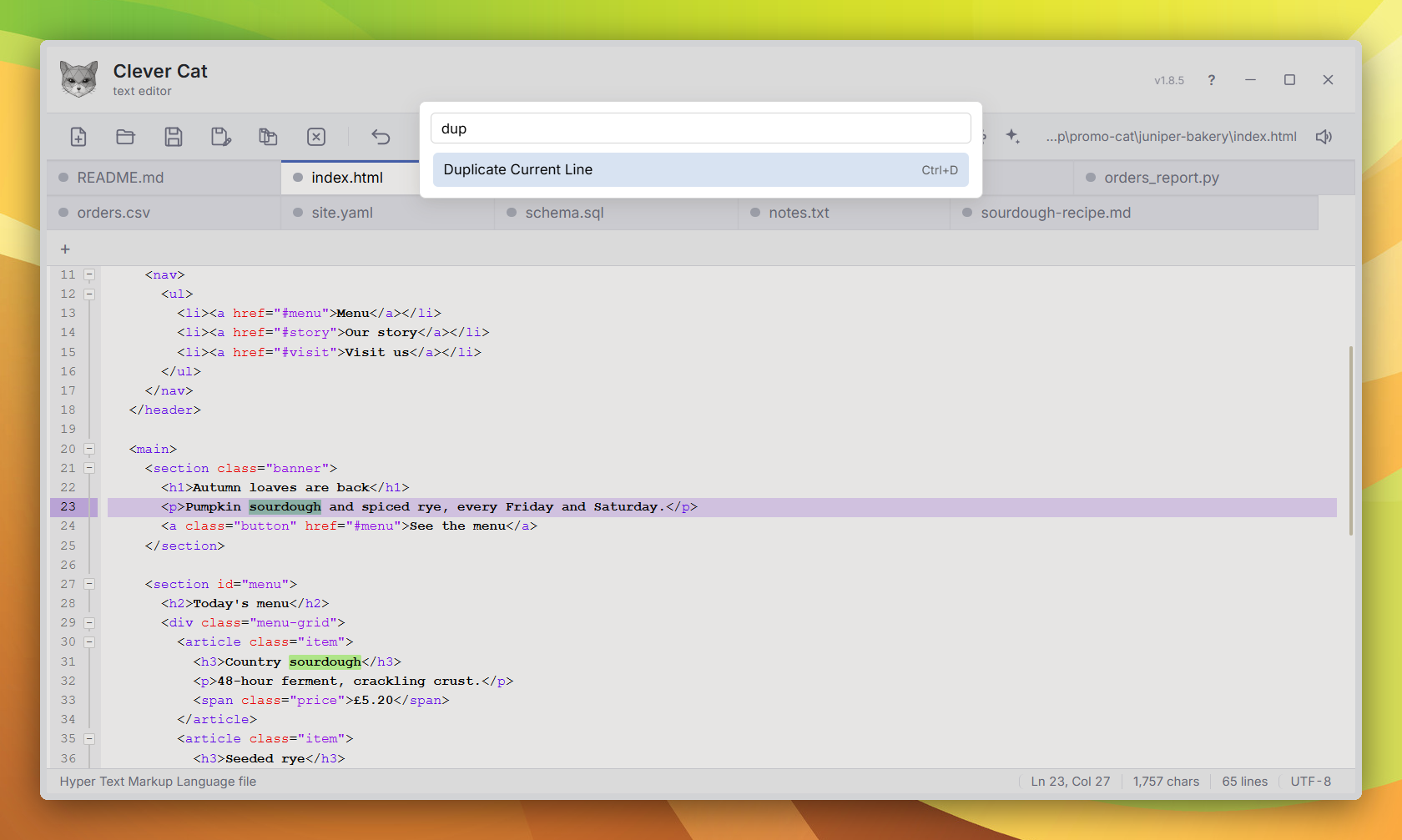
The command palette (Ctrl+K): type a few letters and run any action, here Duplicate Current Line
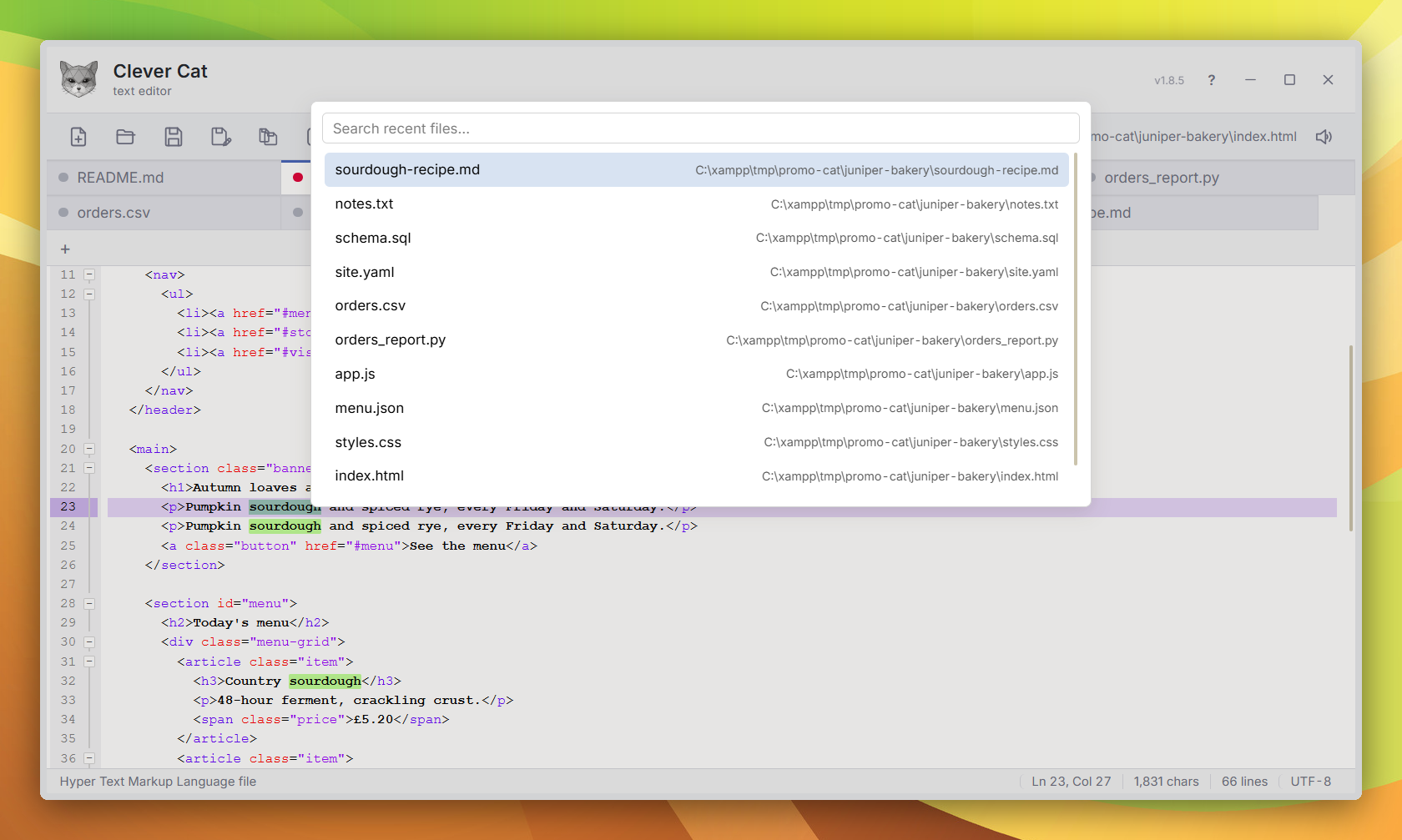
Recent files (Ctrl+Shift+O): every file you opened, with its folder, ready to filter and reopen
Closing a tab with unsaved changes: Save, Don't save or Cancel, so nothing is lost by accident