Complete Guide
Fearless Tiger
See every Claude Code session on your computer in one window, know which one needs you, and let the idle ones sleep to give their memory back. A panel for people who work with Claude Code; it uses the Claude Code you already have.

1. What Is Fearless Tiger?
If you use Claude Code a lot, you end up with five, ten or fifteen sessions open across several projects. By mid-afternoon the computer drags, and you cannot tell which of the terminal tabs has been waiting for you to answer a permission prompt.
Fearless Tiger finds the Claude Code sessions on your computer — also the ones in VS Code — and lists them by project with their state: working, stopped, needs you or asleep. When one asks for permission or asks you something, it beeps and highlights it. The ones that have been stopped for a while are put to sleep to free their memory, and they wake up in the same conversation when you need them. Each agent's terminal is on the right of the same window.
It is for people who run several Claude Code sessions at once, usually with a Pro or Max plan. It does not replace Claude Code: it uses the one you already have, with your own subscription. Claude and Claude Code are trademarks of Anthropic; Fearless Tiger is an independent project and is not affiliated with Anthropic.
2. Installation
What you need before you install it:
Fearless Tiger runs the Claude Code you already have, with your own subscription. It does not install Claude Code and it does not sign you in: if you are not signed in, do it in Claude Code first.
Run the Windows installer and follow the prompts.
Open the Start menu and type Fearless Tiger.
3. First Launch
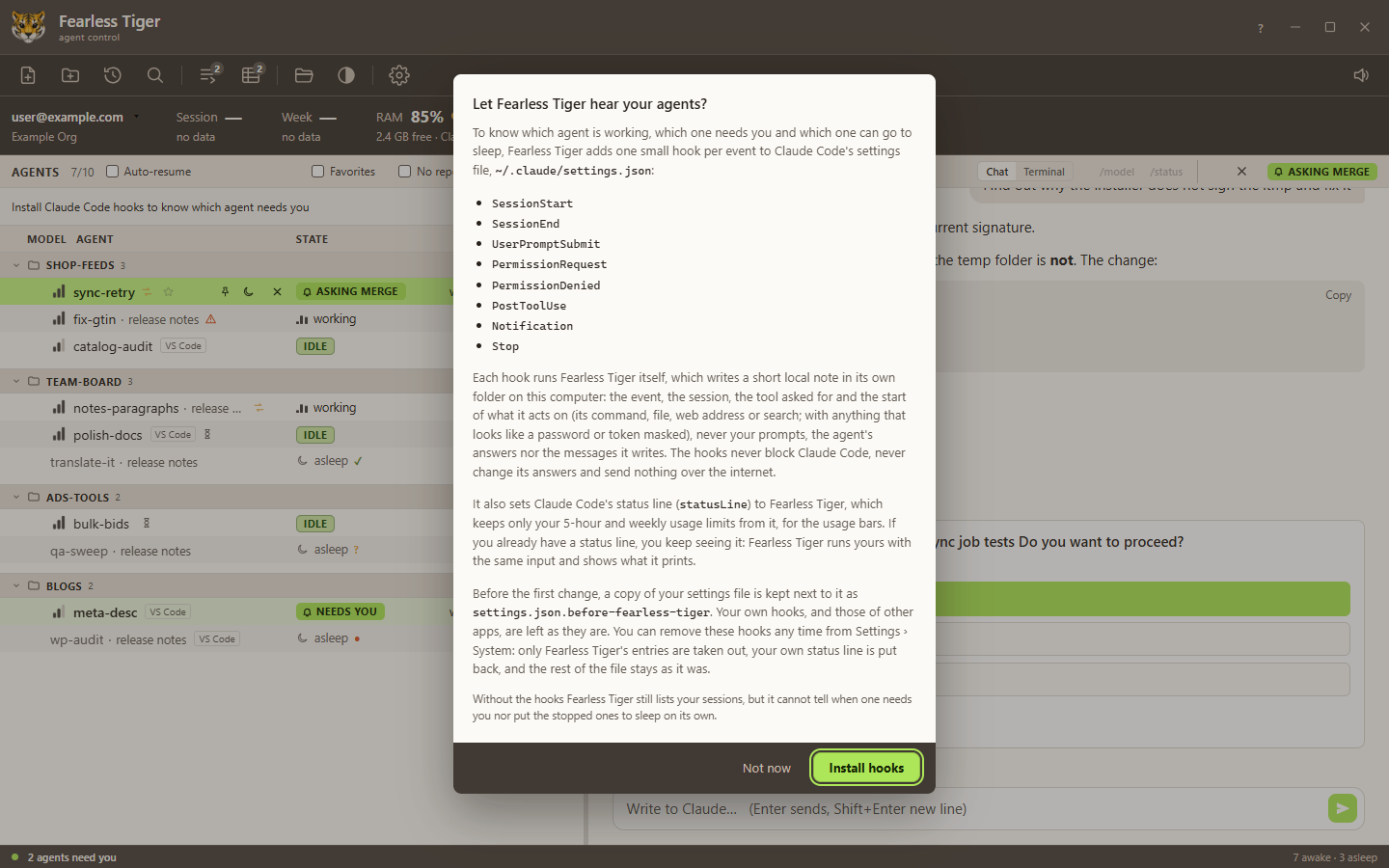
The first thing it asks is whether you will let it hear your agents. To know which agent is working, which one needs you and which one can go to sleep, Fearless Tiger adds one small hook per event to Claude Code's settings file, ~/.claude/settings.json.
- The window lists every hook it adds and what each one records: a short local note, in its own folder on your computer, with the event, the session, the tool that asked and the start of what it acts on. Anything that looks like a password or a token is masked. It never records your prompts, the agent's answers or the messages you write.
- The hooks never block Claude Code, never change its answers and send nothing over the internet.
- It also sets Claude Code's status line to Fearless Tiger, which keeps only your 5-hour and weekly usage limits for the usage bars. If you already had a status line, Fearless Tiger runs yours and keeps showing what it prints.
- Before the first change it saves a copy of your file next to it, as
settings.json.before-fearless-tiger. Your own hooks, and those of other apps, are left as they are.
Choose Install hooks, or Not now. Without the hooks Fearless Tiger still lists your sessions, but it cannot tell when one needs you and it cannot put the stopped ones to sleep on its own. You can remove the hooks any time from Settings › System; your own status line is put back and the rest of the file stays as it was.
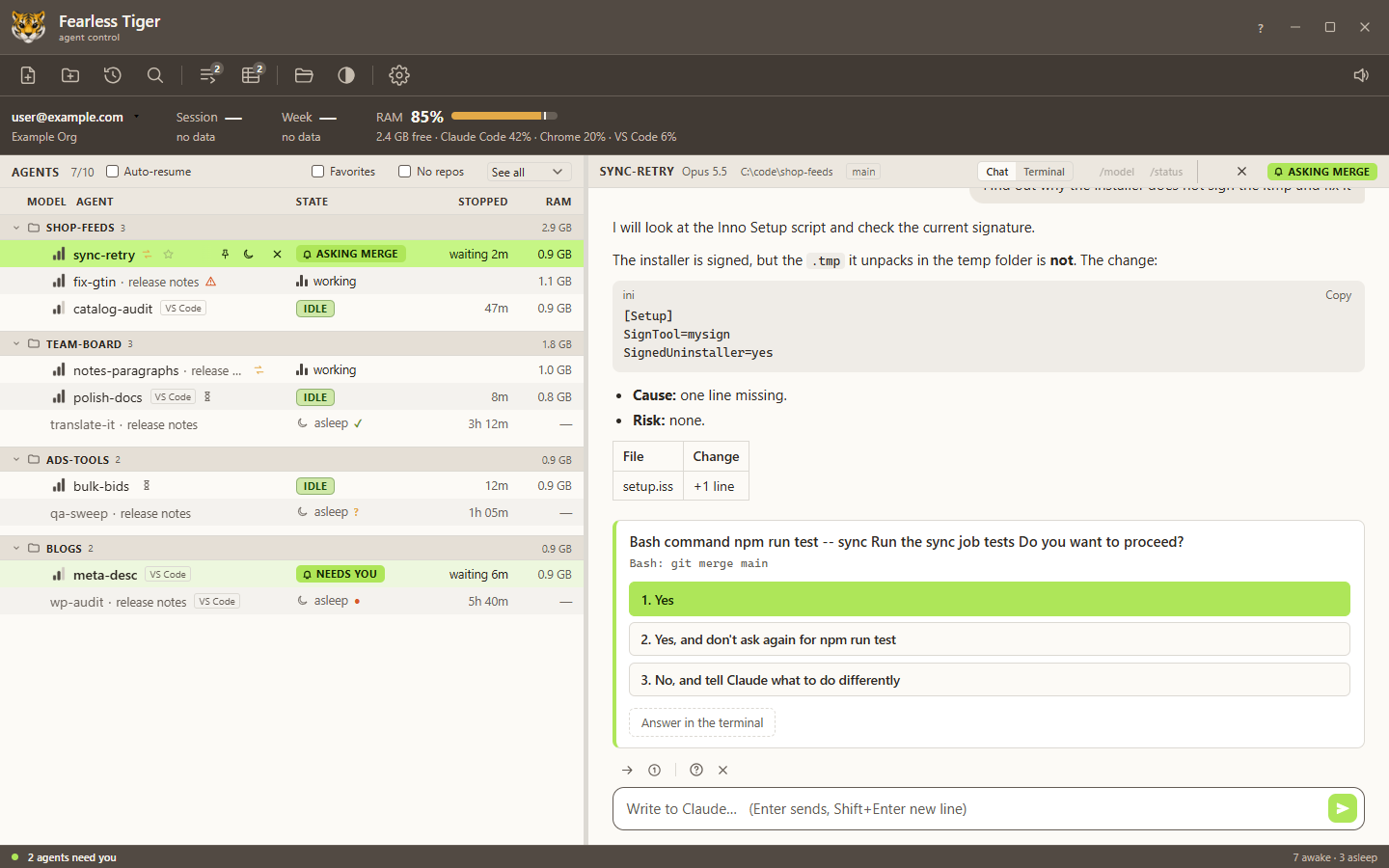
After that you see the main window: the toolbar with the icons, a strip with your account, your 5-hour and weekly usage and the computer's memory, the agent list on the left and the selected agent's terminal on the right. It starts with a short roar, and it lives in the tray: closing the window does not close it. The ? button in the title bar opens this guide.
4. Core Workflow
The everyday loop, with a handful of sessions open.
Your sessions appear grouped by project, each with its state, how long it has been stopped and the memory it uses. Sessions you started outside Fearless Tiger — in another terminal or in VS Code — are there too.
An agent that asks for permission or asks a question beeps and is highlighted in the list. Click it: its conversation opens on the right, with the options as buttons you can click, or type the answer in the terminal.
Use New in folder (Ctrl N) to start one in a folder you choose, New here (Ctrl Shift N) for a sibling in the selected agent's project, or Resume (Ctrl Shift H) to take up a previous conversation.
An agent opened in Fearless Tiger that stays stopped goes to sleep by itself. Click it, or send it an order, and it wakes up where you left it.
5. The Agent List
The list on the left is the heart of the window. Everything else hangs from it.
By project
Agents are grouped by the repository they work in, with favourites, and a filter box ( Ctrl F ).
Four states
Working, stopped, needs you or asleep. A dropdown shows all, only the active or only the sleeping ones ( Alt A / Alt Z ), and one tick hides the sleeping ones.
Terminal and chat
The selected agent's terminal is on the right. The same conversation can be shown as a chat (Chat | Terminal above each agent).
Files panel Ctrl Shift E
Shows the files in the selected agent's folder, with a filter. It is for looking, not editing.
Search Ctrl Shift F
Finds old conversations in an index kept on your computer.
Rename
Give an agent a name of your own. The right-click menu also has the other actions.
6. Alerts & the Overview
Fearless Tiger tells you with a short beep and a highlighted row when an agent needs you — it asks for permission or asks you something — or when it ends its turn. It does not send desktop notifications. Besides that, it marks in the list:
- the agents that look stuck;
- the agents that touch the same file as another one;
- the agents that are ready to close.
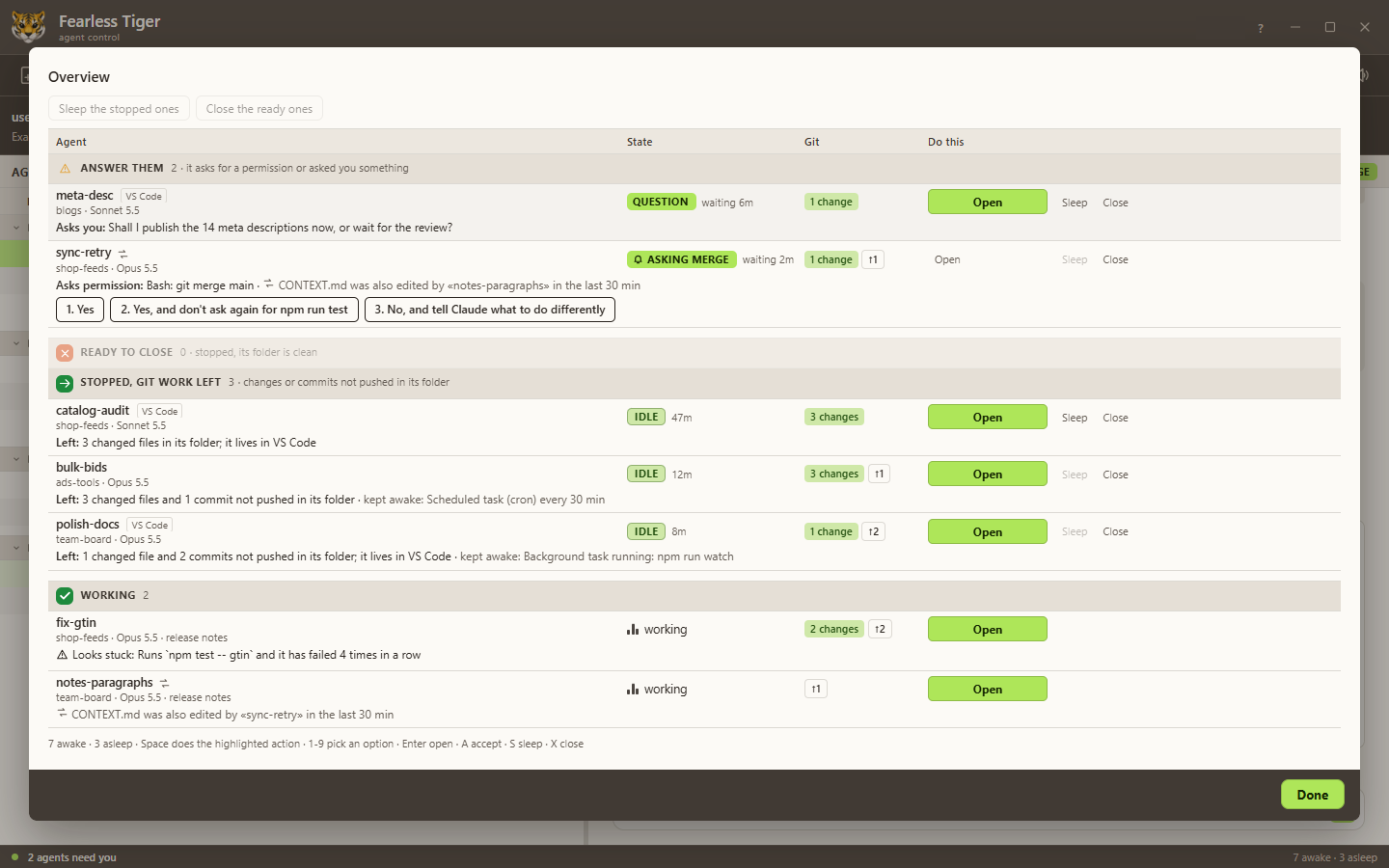
The Overview (Ctrl Shift A) gathers every awake agent in one window, sorted by what it needs from you: first those that ask for permission or ask a question, then the ones stopped with work left in their folder, then the ones working. Each row says what it is asking, shows the answers as buttons, and has Open, Sleep and Close beside it. The buttons at the top put the stopped ones to sleep or close the ready ones in one go.
With a row highlighted: Space does the highlighted action, 1–9 pick an option, Enter opens the agent, S puts it to sleep and X closes it.
7. Sleeping & Waking
A Claude Code session that is open keeps its memory even when it is doing nothing. Putting it to sleep closes it; waking it brings it back with the same conversation and in the same folder.
- Automatically: an agent opened in Fearless Tiger that has been stopped for 30 minutes goes to sleep, or sooner if the computer's free memory drops below the limit you set. This needs you to have accepted the hooks.
- By hand: the sleep button on a row, or Alt S. This is the only way for agents living in VS Code or in another terminal.
- Waking: click the agent, press Alt W, or send it an order.
- What it will not do: put to sleep an agent that is working or has background tasks pending, because you would lose work you cannot see. It says why when you try.
8. Queues & the Dispatcher
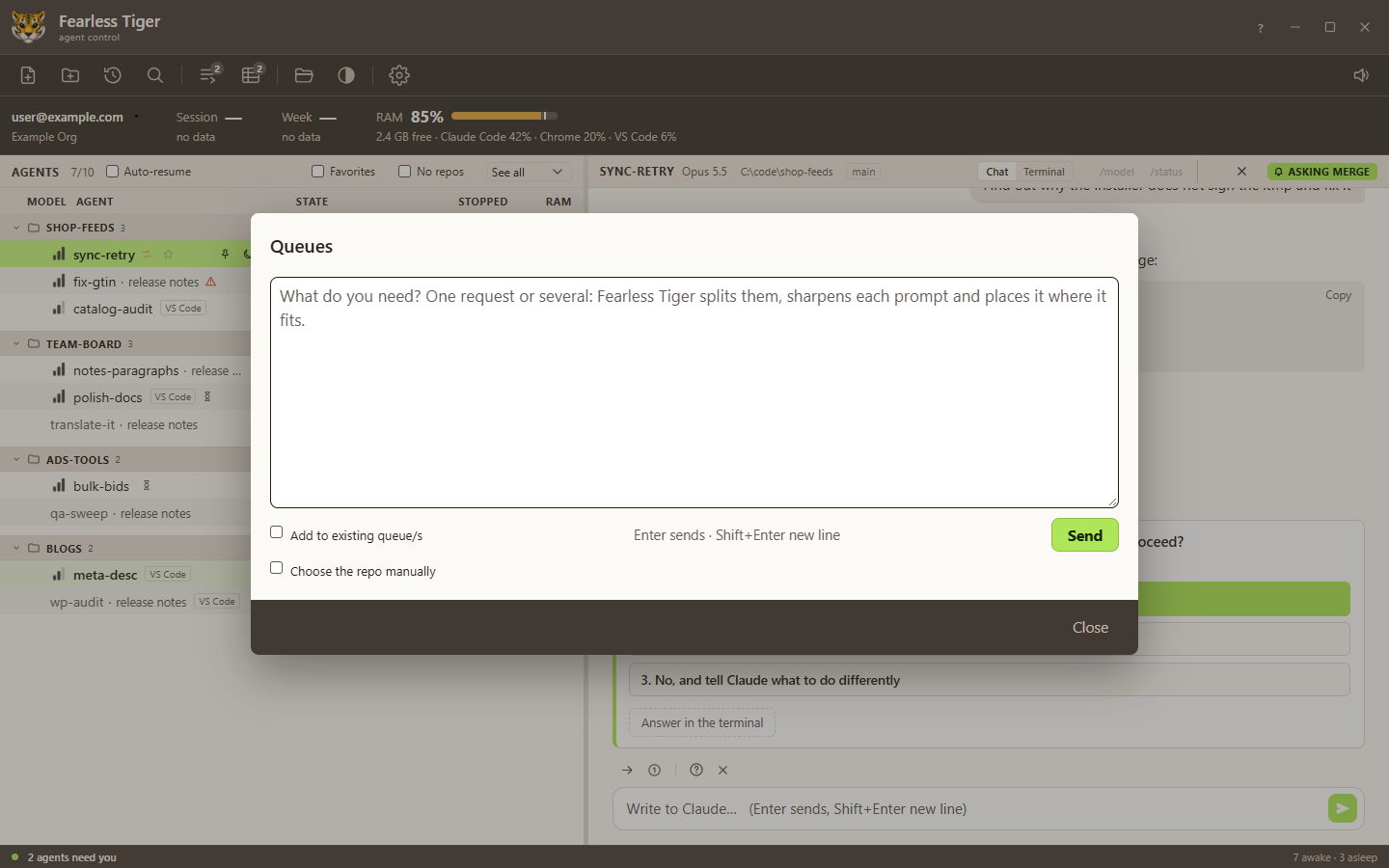
These belong to the Animal Tools licence. Without it, the Queues button explains that and links to the licence.
- Queues (Ctrl Shift Q): a general queue and one per agent. Orders wait there and go out by themselves when there is room.
- Dispatcher: write a long text, or several requests, and it splits them into tasks and chooses the folder for each. It runs on your own Claude Code, with your own account.
- Auto-resume: tick it above the agent list and it wakes, one at a time, the sleeping agents that were cut off in the middle of a task. You choose the model it uses in Settings.
9. Settings & Configuration
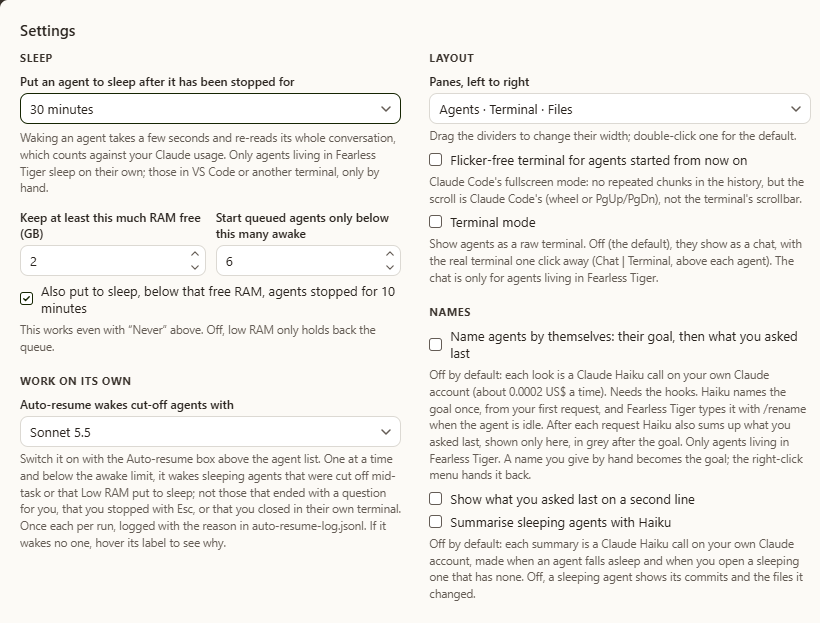
The gear button in the toolbar opens Settings. It applies when you press Save.
- Sleep — after how long a stopped agent goes to sleep (30 minutes by default), how much free memory to keep, how many agents may be awake before queued ones wait, and whether stopped agents also go to sleep sooner when memory runs low. Plus the model Auto-resume uses.
- Layout — the order of the panes, a flicker-free mode for the terminal of agents you start from then on, and Terminal mode, which shows agents as a raw terminal instead of as a chat.
- Names — automatic agent names and sleeping-agent summaries, both off by default: each one is a small call to Claude on your own account, so it uses a little of your usage.
- Interface size — Normal, Large (+30%) or Extra large (+50%), in the terminals too.
- System — start Fearless Tiger with Windows (off by default), and the button that removes the hooks.
- Licence — paste your key here, or get one.
The toolbar also has a terminal theme button (light or night) and a speaker button for the sounds. Your account is at the top left: click it to sign in with another account; the sign-in is always done by Claude Code itself, and Fearless Tiger never sees or stores your tokens.
10. Tips
- Leave it in the tray. Closing the window does not close Fearless Tiger: it keeps watching and putting idle agents to sleep.
- Use the Overview before a break. Ctrl Shift A shows what is waiting on you and which agents have work left in their folder.
- Move with the keyboard. Alt ↑ and Alt ↓ select the agent above or below; Alt ← and Alt → go back and forward through the ones you visited.
- Favourites first. Mark the agents you always keep open and tick Favorites to see only those.
- Turn on names only if you want them. Automatic names and summaries use a little of your Claude usage, which is why they start off.
Every shortcut is listed in Keyboard Shortcuts.
11. FAQ
Does Fearless Tiger read or store my Claude login?
No. It does not read, store or forward your passwords or tokens. Signing in is always done by Claude Code itself, and Fearless Tiger only starts that sign-in.
Does it replace Claude Code, or install it?
No. You need Claude Code installed and signed in; Fearless Tiger runs the one you have, with your own subscription. It only adds its hooks and its status line to Claude Code's settings, with your permission and after saving a copy.
Will it put to sleep an agent that is working?
No. It does not put to sleep an agent that is working or has background tasks pending, because you would lose work you cannot see.
Does it send me a desktop notification when an agent needs me?
No. It beeps and highlights the row in the list. If you want to be told while you are somewhere else, keep the window where you can see it.
Does it work with Codex or other assistants?
No. It manages Claude Code only, because it is the only one whose behaviour has been checked.
Can it commit, push or approve permissions for me?
No. It never commits or pushes, and it never approves a permission on its own: you decide in the terminal or with a click in the window. It is not an editor either: it shows your files but does not edit them or show diffs. For editing, Clever Cat Notepad is a free tabbed text editor.
What does it send to the internet?
On its own, only the check for updates and the licence check. Names, summaries and the dispatcher are made by your own Claude Code with your own account, and only if you use them. It has no account of its own and no telemetry; the log of what your agents do (30 days) and the index for the search stay on your computer.
12. Keyboard Shortcuts
Agents
| Action | Key |
|---|---|
| New agent asks for the folder | Ctrl N |
| New agent in the selected agent's project | Ctrl Shift N |
| Resume a previous conversation | Ctrl Shift H |
| Search every conversation | Ctrl Shift F |
| Filter the list Esc clears it | Ctrl F |
| Select the agent above / below | Alt ↑ / Alt ↓ |
| Back / forward through the agents visited | Alt ← / Alt → |
| Put the selected agent to sleep | Alt S |
| Wake the selected agent | Alt W |
| Close the selected agent it asks first | Alt C |
| Show only active / only sleeping press again to see all | Alt A / Alt Z |
Windows and panels
| Action | Key |
|---|---|
| Overview of every awake agent | Ctrl Shift A |
| Queues with the licence | Ctrl Shift Q or Ctrl Shift G |
| Show / hide the Files panel | Ctrl Shift E |
Inside the Overview
| Action | Key |
|---|---|
| Move between rows | ↑ ↓ |
| Do the highlighted action | Space |
| Pick an option | 1–9 |
| Open the agent | Enter |
| Put it to sleep / close it | S / X |
Terminal text size
| Action | Key |
|---|---|
| Larger / smaller / reset | Ctrl = / Ctrl - / Ctrl 0 |
| Larger / smaller with the wheel | Ctrl + mouse wheel |
Ready to install?
The tool page has the Windows installer and says what it needs.
Get Fearless Tiger →