Complete Guide
Handy Raccoon
Speak once. Keep the text forever. A near-instant, 100% local dictation app: record from anywhere with a global hotkey, get an editable transcript, and paste it right back where you were typing.

1. What Is Handy Raccoon?
Typing is slower than thinking. Windows' built-in voice typing works in a pinch, but it needs an internet connection, sends your audio to Microsoft, and doesn't give you an editable transcript you can review before it lands in your document. Cloud dictation tools solve the accuracy problem but ask for a subscription and a constant upload of your voice.
Handy Raccoon transcribes entirely on your machine — audio never leaves your computer. Press a global hotkey from anywhere, speak, press it again, and the text appears in an editable transcript, ready to copy or paste automatically back into whatever you were typing in. The default speech engine (NVIDIA Parakeet TDT v3) turns a short dictation into text in about a second, so the wait between speaking and having your words never breaks your flow.
It's built for people who think faster than they type: the student dictating thesis notes, the developer capturing technical notes without their voice touching a server, the writer dictating a draft while pacing around the room. No subscription, nothing uploaded, nothing to configure beyond a one-time model install.
2. Installation
Go to thestromboliproject.com/tools/handy-raccoon/ and download the installer — Windows, or the Linux build (.deb or AppImage).
Double-click the installer and follow the prompts. It installs to your user folder — no administrator rights required.
Find it in your Start menu or desktop shortcut. The app opens its main window and, unless this is a fresh setup, is ready to record right away.
3. First Launch
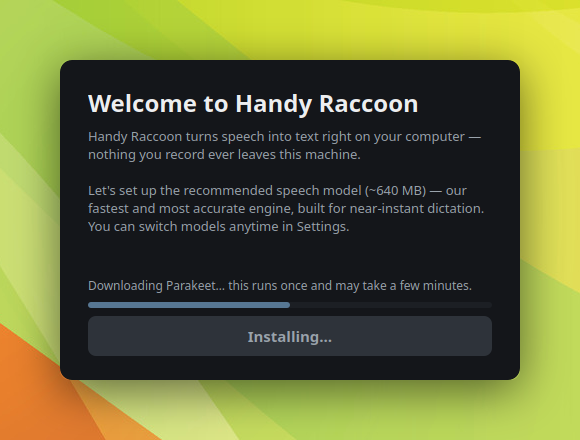
On the very first run, Handy Raccoon walks you through installing its speech engine before you can record anything. There's no model picker at this stage — it installs the recommended engine, Parakeet, directly: a single "Install" button, a progress indicator while the ~640 MB download completes, and a "Start" button once it's ready. The other engines (whisper Base, Small, Medium, Large-Turbo) stay available later, in Settings, for anyone who wants to compare them.
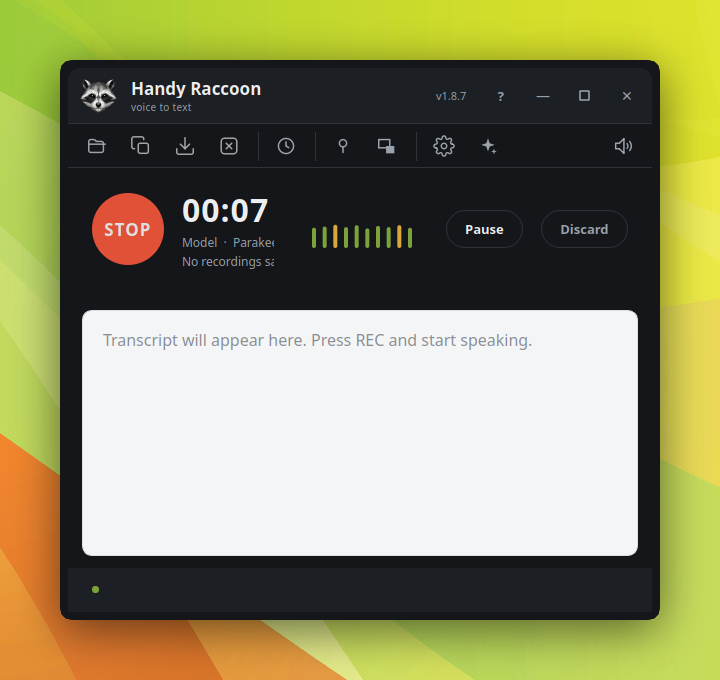
Once onboarding is done, the main window opens: a big circular REC button in the center, an action bar above it, and a large empty transcript area below waiting for your first dictation.
System tray
Handy Raccoon keeps running in the system tray after you close its window — closing the window hides it, it doesn't quit the app. Right-click the raccoon icon in the tray for a quick menu: Start/Stop dictation (label changes depending on whether you're currently recording), Settings, and Quit. Quit from this menu is the only way to actually close the app; the window's own close button always just hides it.
4. Core Workflow
The basic loop — record, transcribe, copy — takes a few seconds from the moment you stop talking.
Click the big circular button, or trigger it from anywhere with your global hotkey (see Dictate From Anywhere). The button pulses, a 10-bar equalizer reacts to your voice in real time, and a timer starts counting.
Pause and resume anytime with the secondary button that appears next to REC while recording. During the first 14 days, the full version, there's no fixed time limit per recording; after that, the free version caps each recording at 15 minutes (30 minutes total a month) unless you add the licence. Changed your mind mid-recording or mid-transcription? Discard (with a confirmation) throws it away instead of pasting it anywhere. If a recording runs past 5 minutes, stopping it asks you to confirm before transcribing — with the default Parakeet engine, a started transcription can't be aborted, only discarded from the UI while it finishes in the background, so this catches an accidental long recording before it burns CPU/RAM.
Transcription starts immediately. With the default Parakeet engine, a short dictation lands as text in about a second; longer dictations stream in progressively so you start seeing text before transcription finishes.
The transcript is a normal editable text box — fix anything by hand, hit Ctrl C to copy, or turn on auto-copy / paste-in-place in Settings so the text is already where you need it.
5. Dictate From Anywhere
This is what turns Handy Raccoon from "a recorder with a transcript" into actual dictation: you don't need the window open or focused at all.
⌨️ Global hotkey
Off by default. Enable it in Settings and pick a combination (default Ctrl Alt D ) that starts and stops dictation from inside any application.
📋 Paste-in-place
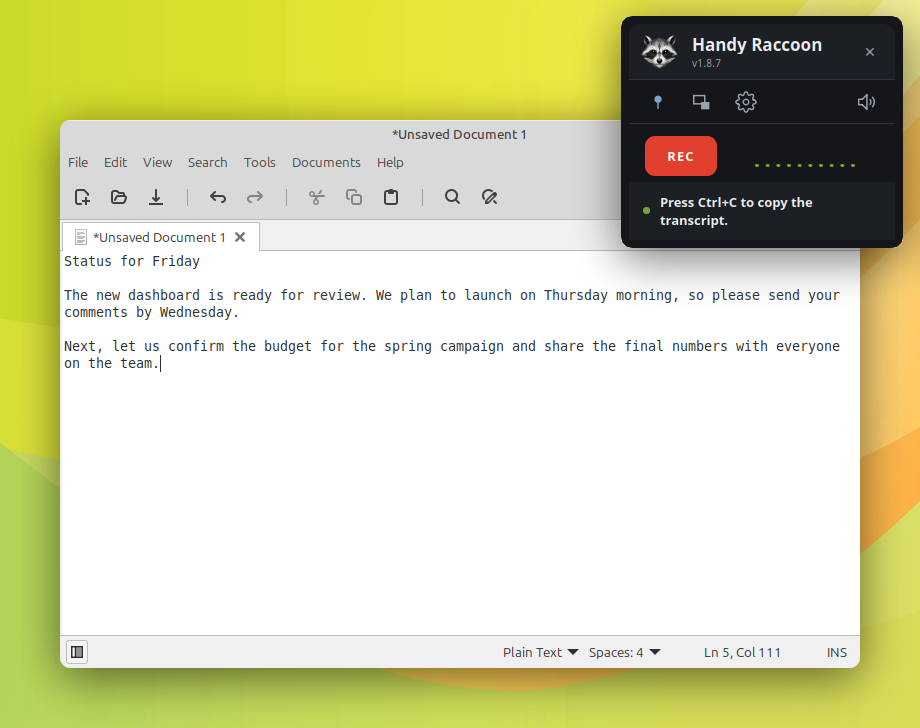
When a dictation is started with the hotkey, Handy Raccoon remembers which window had focus and pastes the finished transcript straight into it — with an option to also press Enter for you.
6. Clean Up Your Transcript
Two independent layers of cleanup are available, both optional and both off by default unless noted.
Deterministic cleanup — no AI, no network
🔤 Spoken punctuation
Say "period", "comma", "new line"… and Handy Raccoon converts them to the matching symbol as you speak, in English or Spanish.
🚫 Filler word removal
Strips a fixed list of filler words ("um", "uh"… / "eh", "esto"…) from the transcript. Off by default — it can occasionally strip a word you meant to say.
💻 Contextual formatting
Skips auto-capitalization and the trailing period when the focused app is a known code editor (VS Code, PyCharm, Sublime Text…).
📖 Vocabulary
A list of proper names or technical terms you supply that biases the engine to recognize them correctly. Whisper models only — Parakeet doesn't support it.
AI actions — optional, your own Gemini key
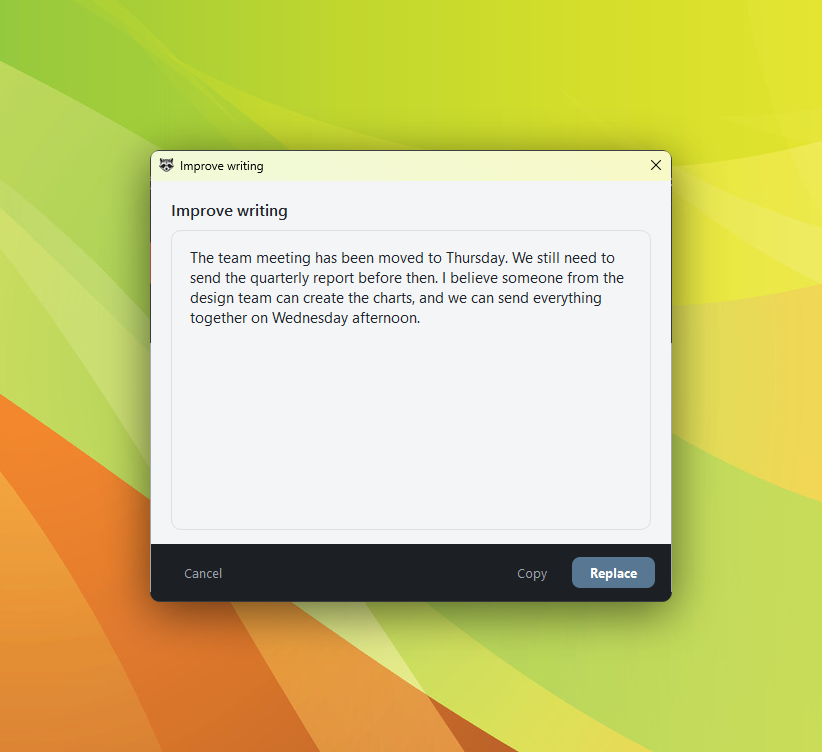
The sparkle button in the action bar opens five rewriting actions, powered by Google's Gemini and inert until you add your own free API key in AI settings. Every action opens a preview with Cancel / Copy / Replace before anything touches your transcript — nothing is rewritten silently.
The engine behind them is Google Gemini 2.5 Flash, named in AI settings next to the privacy note so you always know what you're sending text to.
Spelling and grammar check
Improve writing
Summarize
Split into paragraphs
Convert to bullet list
Improve writing automatically
The five actions above are manual: you run them on a transcript you can already see. Settings → Text cleanup → "Improve writing automatically with AI" takes the same Improve writing action and runs it on its own, on every transcription, before the text is revealed or pasted. It is the one AI action that rewrites without showing you a preview first, so it ships switched off and needs a Gemini key already set up in AI settings.
It earns its place on long or hesitant recordings. When you're working an idea out loud rather than answering a question, you leave longer pauses — and the speech engine reads those pauses as the end of a sentence, so the transcript comes back peppered with full stops and line breaks that were never there. The AI puts those broken sentences back together. If the call fails or the key is missing, you get the raw text as usual: it never blocks a dictation.
7. Import & Export
Transcribe existing audio or video
Handy Raccoon doesn't only transcribe what it records itself. Drag an audio or video file onto the window, or press Ctrl O to open one from a file picker, and it runs through the same live transcription pipeline as a fresh recording. Supported formats: WAV, MP3, FLAC, OGG, OGA, OPUS, M4A, AAC, WMA, AIF/AIFF/AIFC for audio, and MP4, MKV, MOV, WEBM for video (only the audio track is used). Imported files aren't added to your recording history — they're already yours. The same 5-minute confirmation that applies to long recordings applies here too: if the file's duration can be read from its header, an import past that length asks you to confirm before transcribing.
Export
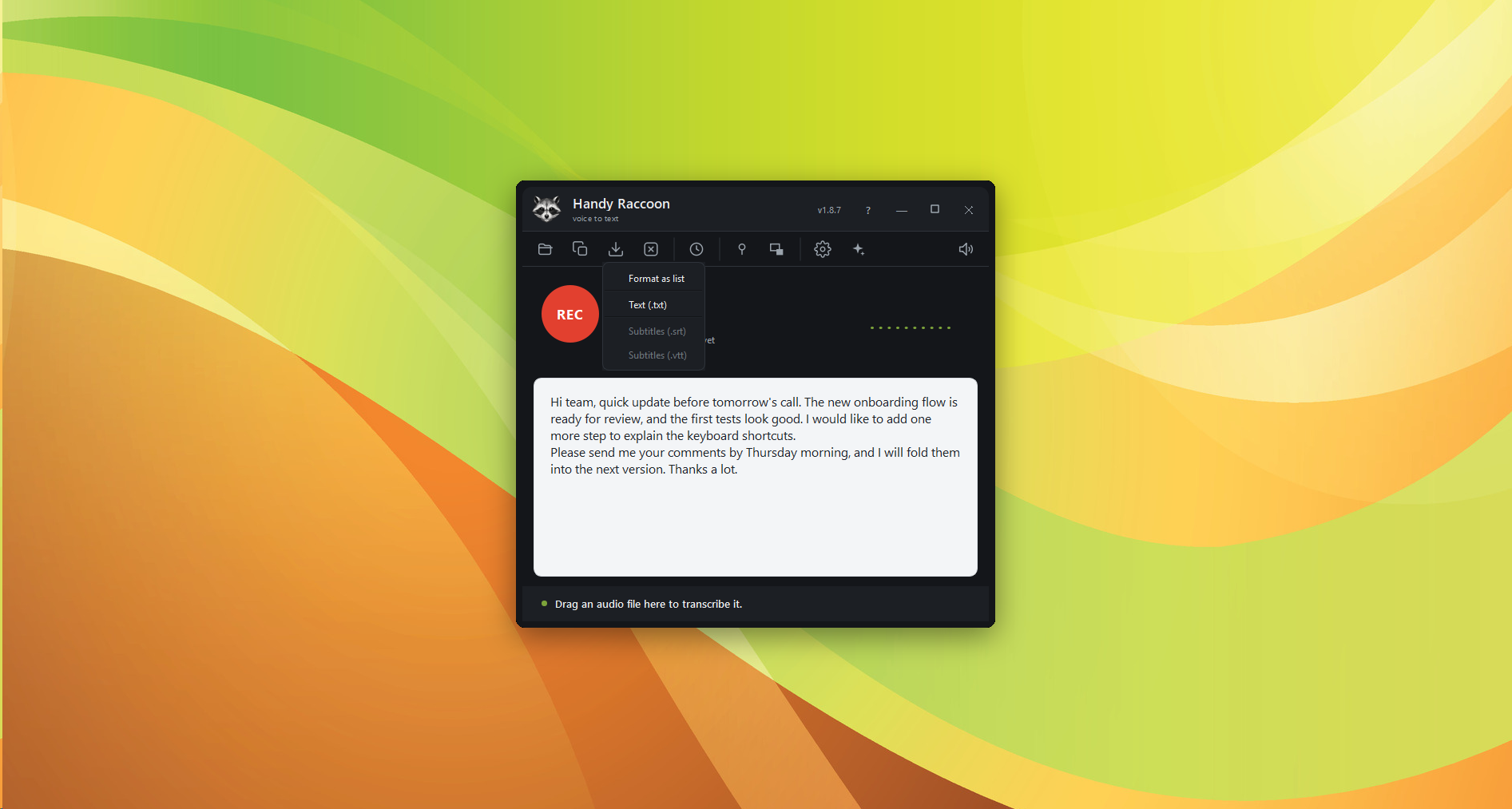
- Transcript Ctrl E — export to plain text (.txt), with an optional "Format as list" checkbox that turns the text into bullet points, or to subtitles (.srt / .vtt). The subtitle options are only enabled right after a Parakeet transcription — the only engine that gives real per-sentence timestamps — and they switch off as soon as an AI action rewrites the text.
- Audio — saved to MP3 automatically according to your Settings preference (always / ask every time / never), optionally with a matching .txt transcript saved alongside it.
8. Runs In The Background
🗔 Compact view
Shrinks the window to a small always-on-top overlay with the REC button, the equalizer, and quick access to Pin and Settings — for dictating without a full window taking up screen space.
📌 Pin
Keeps the (full-size) window always on top, independently of compact view.
🗂️ System tray
Closing the window minimizes it to the tray instead of quitting. Start/stop dictation, Settings, and the real Quit all live in the tray's right-click menu.
🔁 Single instance
Launching Handy Raccoon while it's already running just brings the existing window forward — it never opens a second, competing copy.
⬆️ Update check
A few seconds after launch, Handy Raccoon quietly checks whether a newer version has been published for your platform, and offers the exact installer if there is one. Offline, nothing happens. Versions before 1.5.0 don't have this check — update those by hand once.
9. Settings
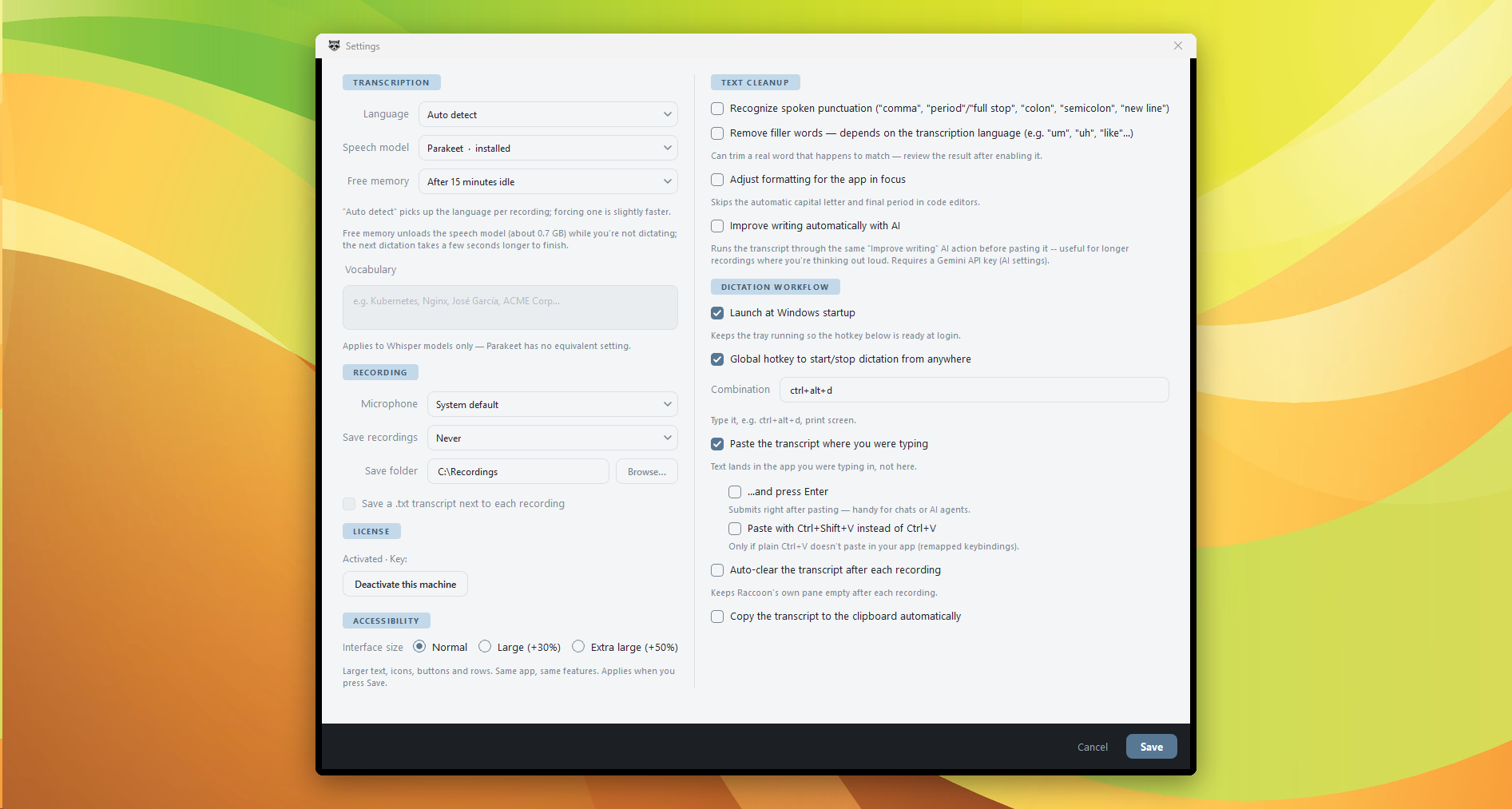
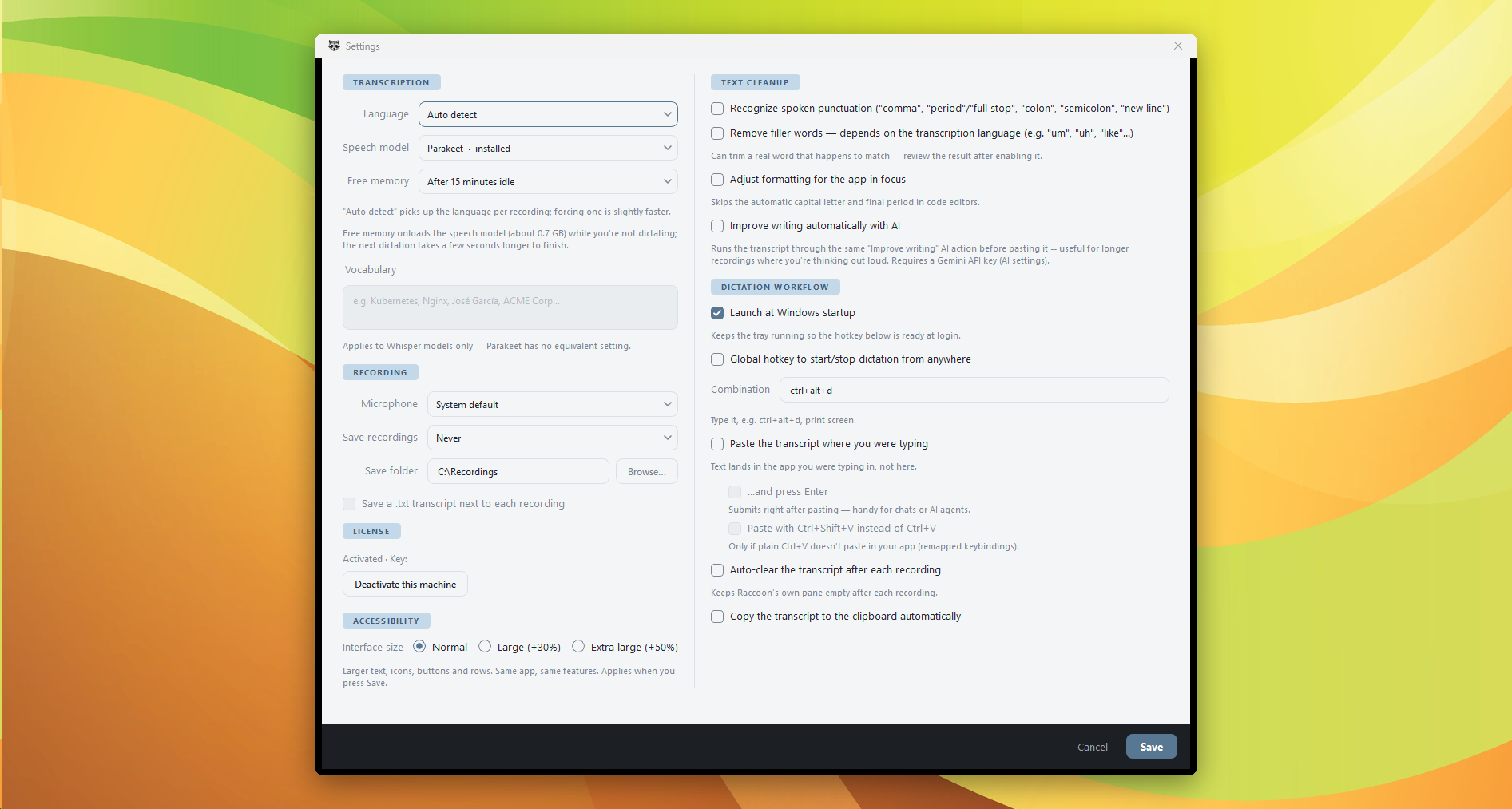
Open Settings from the action bar or the tray menu. It's split into two columns.
Transcription & recording
- Language — 49 languages plus Auto-detect.
- Speech model — Parakeet (Recommended) or whisper Base / Small / Medium / Large-Turbo, each with its own Download button if not yet installed.
- Vocabulary — proper names or terms to bias the engine toward (whisper models only).
- Microphone — pick which input device to record from.
- Save recordings — Always / Ask every time / Never, plus the destination folder and an optional .txt sidecar.
Text & workflow
- Recognize spoken punctuation, Remove filler words, Adjust formatting for the app in focus — see Clean Up Your Transcript.
- Launch at Windows startup — on by default.
- Global hotkey and Paste the transcript where you were typing — see Dictate From Anywhere.
- Auto-clear the transcript after each recording — starts every new dictation with an empty box.
- Copy the transcript to the clipboard automatically — no need to press Copy by hand.
Accessibility
- Interface size — Normal, Large (+30%) or Extra large (+50%). The same app with bigger text, buttons, rows and icons, compact mode included — nothing is hidden or simplified. It applies as soon as you save, with no restart, and it is remembered next time.
10. Tips
- Set up the hotkey first. Everything else about Handy Raccoon is optional polish — the global hotkey plus paste-in-place is what actually replaces typing.
- Keep Parakeet as your default. It's faster and at least as accurate as the whisper models; only switch if you specifically need whisper's Vocabulary biasing.
- Use compact view for long dictation sessions. It keeps a visual indicator on screen without a full window in your way.
- Try one AI action before turning on Remove filler words. "Improve writing" often cleans up more than the deterministic filler-word list, without the risk of stripping a word you actually meant.
- Drag in old voice memos. If you have audio notes piling up from your phone, drop them onto the window instead of re-recording them.
For a complete list of keyboard shortcuts, see Keyboard Shortcuts ↓.
11. FAQ
Does my audio ever leave my computer?
No, transcription is 100% local. The only exception is if you explicitly run one of the optional AI actions — in that case, only the text you selected (never the audio) is sent to Google's Gemini API using your own key.
Can it identify who's speaking in a meeting, or summarize a call?
No — there's no speaker diarization. The Summarize AI action condenses a transcript you already have, it doesn't process a live multi-speaker recording.
Is it an AI chatbot I can ask questions to?
No. Handy Raccoon transcribes what you say and offers a handful of one-shot rewriting actions (correct, improve, summarize…) on the resulting text — it doesn't hold a conversation or answer questions.
Does it require an account or subscription?
No login is required. It installs its speech model once and works fully offline after that.
Can it record my screen, not just my voice?
No, Handy Raccoon is audio-only. For screen capture, Snappy Wasp is the Stromboli tool for that.
Does it organize my notes or let me search past dictations?
No. History only lists recordings by name, date, and duration with a shortcut to open the containing folder — there's no note organization or semantic search.
12. Keyboard Shortcuts
Global (works from any application)
| Action | Key |
|---|---|
| Start / stop dictation | Ctrl Alt D default — off until enabled, combination editable in Settings |
Main window
| Action | Key |
|---|---|
| Open audio/video file to transcribe | Ctrl O |
| Copy transcript | Ctrl C |
| Export transcript | Ctrl E |
| Clear transcript | Ctrl Shift Backspace |
| Open history | Ctrl H |
Ready to install?
Speak once. Keep the text forever.
Download Handy Raccoon →