🌋 The Stromboli Project
Free 🪟 Windows

Snappy Wasp Screen Capture

One key, one drag, and the image is already explained.

It waits in the system tray. Press your hotkey, pick the area, draw the arrow and blur what should not travel — then it is on the clipboard, in your folder, or both.

No account, no email, no licence key. Snappy Wasp is free, nothing is uploaded, and no link ever expires.

Windows and Linux desktop builds

Windows may show a SmartScreen warning on first launch — click More info → Run anyway.

Snappy Wasp's annotation editor holding a capture already marked up with an arrow, numbered counters and a blurred area.
One key, one drag, and the arrows, numbers and blur are already at hand.

Snappy Wasp is a screen capture tool: one hotkey, one drag, seven annotation tools at a keypress — fast, useful, and a little addictive.

Features

Everything that happens between the hotkey and the paste.

One key, from anywhere.

  • Global hotkey, Print Screen by default, and changeable
  • You choose what it fires: region, full screen or window
  • Tray icon with a quick capture menu
  • Runs in the background with no window at all
  • Tells you by the clock if the hotkey cannot be set or a capture fails

Mark it up before it is saved.

  • Arrows, boxes, free text, highlight and blur
  • Auto-numbered step counters for tutorials
  • Eight colours, one click away
  • Stroke weight on the mouse wheel, per tool

Clipboard, file, or both.

  • Two destinations, and they are independent
  • PNG for lossless, JPG when size matters
  • Your own filename prefix in Settings

The screen it is on, the window you mean.

  • Full screen of the monitor under the cursor
  • The active window, on its own
  • Free region by dragging, with the rest dimmed
  • Dim opacity is yours to set

Quiet by default.

  • One switch mutes every sound, startup included
  • Starts with Windows only if you ask it to
  • Checks for a new version in the background
  • Interface at Normal, +30% or +50% size
  • “Report a problem” in the ? menu opens your email with the version and system already filled in. Nothing is sent until you send it
  • If Print Screen or a capture fails, it tells you by the clock and keeps a small local activity log

Nothing leaves your machine.

  • No account, no cloud, nothing uploaded
  • It captures images and stops there
  • A small activity log, kept on your PC, to find out why a hotkey does not respond
  • Free, and it stays free
  • One of the Animal Tools: same look, same habits
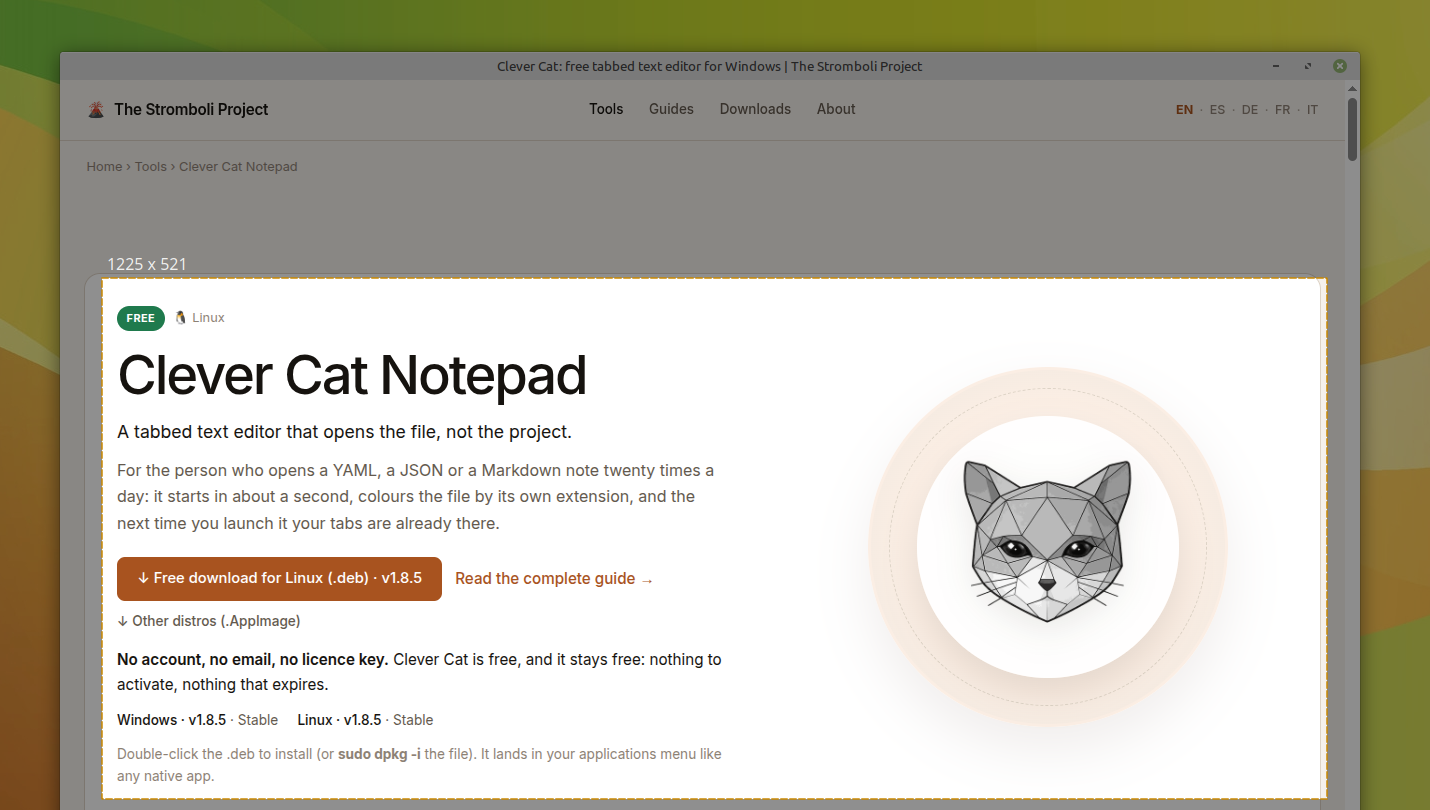
Snappy Wasp's selection rectangle open over a dimmed screen, with edge guides and the pixel size shown beside the cursor.
Grab exactly the area you need, with edge guides and the size in pixels right by the cursor.

What you get

Three things that turn a screenshot into an explanation.

One key, from wherever you are

A global hotkey — Print Screen by default, yours to change — and you choose separately what it captures: region, window or full screen.

Annotated before it leaves

Arrows, boxes, text, highlight, blur and numbered counters, in eight colours, with the stroke width on the mouse wheel.

Clipboard, file, or both

The two destinations are independent. PNG or JPG, in the folder you chose, with the filename prefix you set.

The one thing

Snappy Wasp is the screenshot tool I reach for without thinking. One key, drag over the area, and the editing tools are right there: arrows, highlighter, blur, numbered counters. Double-click the capture and it’s on your clipboard, ready to paste. No menus to get through first.

— Javier, The Stromboli Project
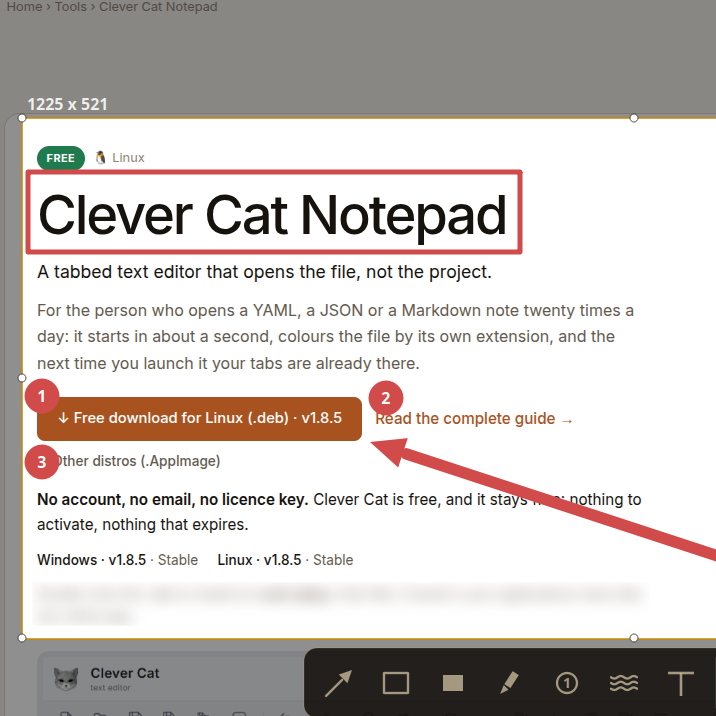
A capture marked up in place in Snappy Wasp: a box around the title, numbered steps, an arrow and a label, with the editing tools right underneath.
Box the title, number the steps, point the way. The tools sit right under your capture.

Where it fits

For the screenshot that has to be understood by someone else.

It is the right tool when…

  • the image goes into an issue, a chat or a how-to several times a day
  • something on screen has to be blurred before the image travels
  • you want the same key you always pressed to do the whole job
  • the tool should be in the tray, not a window you have to find first
  • the file must stay on your disk, with no upload and no link to share

What it needs

  • Windows: it starts into the tray, with an optional launch at startup
  • Linux: .deb and .AppImage; it needs X11 or XWayland
  • macOS: no build. This is a Windows and Linux desktop app
  • Nothing else: no account, no key, no first-run setup

How it goes

Press, drag, draw, done.

Four actions between the thing on your screen and the image in the other window — and the app goes back to the tray on its own.

  • The background dims while you select, as much or as little as you set
  • The last region stays available while the app is open
Step 1 · Press Your hotkey, from any application. The screen dims and the selection cursor appears.
Step 2 · Select Drag the region — or take the active window or the full screen from the tray menu.
Step 3 · Annotate Arrow, box, numbered step, blur. Or skip it and go straight to saving.
Step 4 · Done Copy, save as PNG or JPG, or both. The canvas closes and it is back in the tray.

Compared

Two capture tools people already have, and what Snappy Wasp does instead.

ShareX is the free all-in-one; Snagit is the paid studio. Snappy Wasp is deliberately narrower than both, and the last block says exactly where that costs you something. Rows where all three behave the same are left out: they are not a reason to pick one.

Snappy Wasp compared with ShareX and Snagit
Snappy WaspFree · closed source ShareXFree · open source SnagitSubscription · closed source
What it does
Annotate before you save ✓Arrows, boxes, text, blur, numbered steps ✓Image editor ✓Arrows, callouts, step markers, blur
Works without an account ✓ ✓ ✕TechSmith sign-in
What it costs
Price Free Free €39.56 per user per year
A version you can keep for free ✓The whole app ✓The whole app ✕15-day trial, then paid
Keeps working without a subscription ✓Nothing to renew ✓Nothing to renew ✕Billed yearly
What comes with it
Part of a set that looks and behaves the same ✓One of the Animal Tools ✕Standalone product ✕Standalone product
Linux build ✓Needs X11 or XWayland ✕ ✕
macOS build ✕ ✕ ✓
What it leaves out on purpose
Screen recording —It captures images, nothing else ✓ ✓
Text recognition (OCR) — ✓ ✓
Uploads to cloud destinations —Your capture stays on your machine ✓S3, Google Cloud and many more ✓OneDrive, Dropbox, Screencast
Open source ✕ ✓ ✕

✓included✕not available—left out on purpose

Comparison based on the published pages of each product — getsharex.com for ShareX, techsmith.com for Snagit — verified 2026-09-26, against the individual Snagit subscription. Features and prices change: check their sites for current details. The Stromboli Project is an independent project, not affiliated with, endorsed by or sponsored by ShareX or TechSmith Corporation. All product names are trademarks of their respective owners.

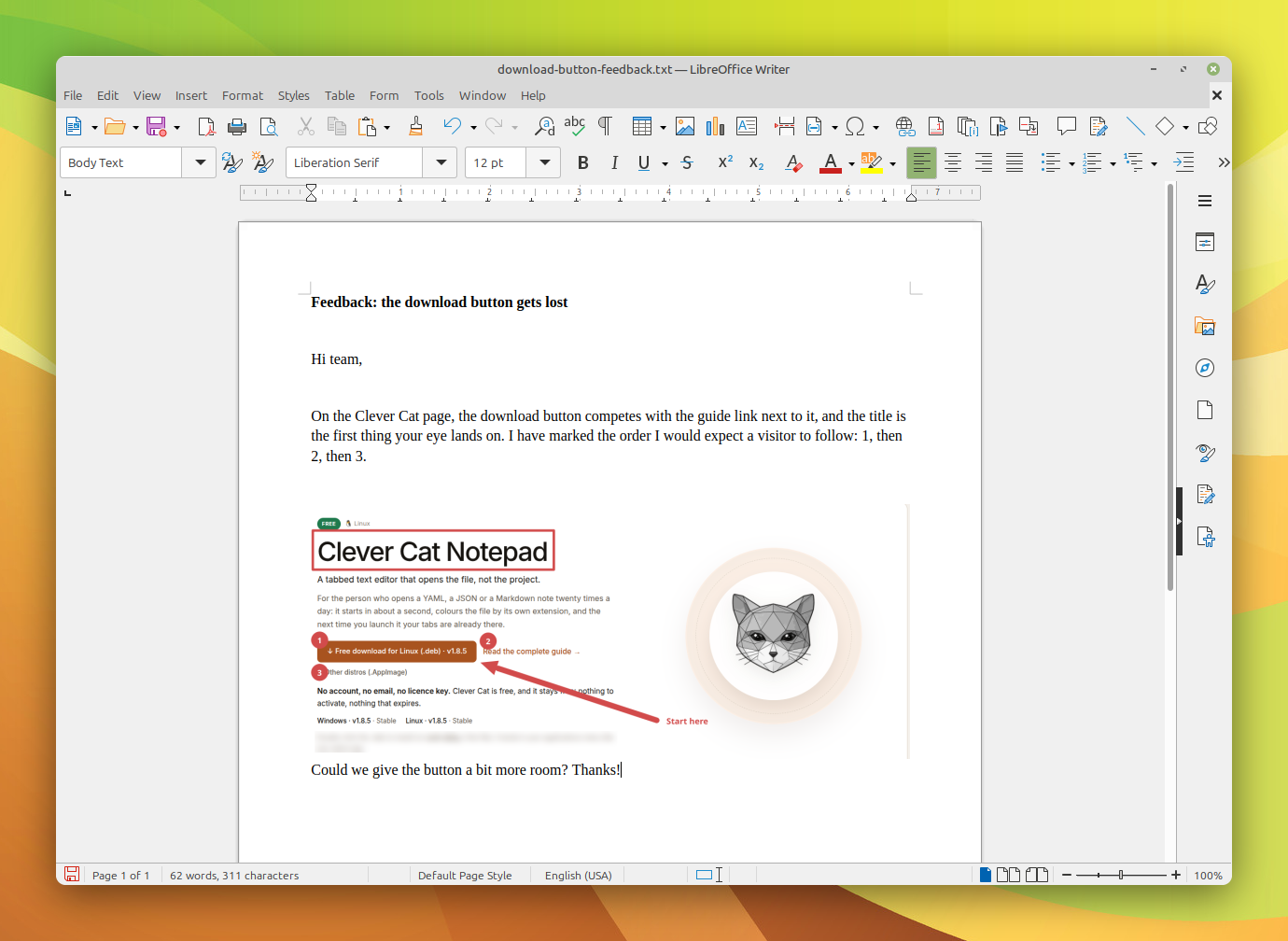
An image annotated in Snappy Wasp, arrow and numbered counter included, pasted into another application with text around it.
Double-click and paste: your marked-up screenshot drops straight into the email, chat or doc.

Who it is for

People who take screenshots, not people who collect them.

Developers filing issues, designers documenting a state, support teams explaining a step. The guide covers the same ground slowly: the hotkey, the annotation tools, the save folder and the tray.

Read the complete guide →

What it leaves out

Still images. That is the whole job.

  • No video. It captures still images, and none of the Animal Tools records the screen
  • No OCR: it does not pull the text out of the image
  • No cloud, no account and no expiring share links
  • It does not remember regions between sessions — only while it is open
  • JPG quality is fixed at 90% and cannot be changed from the interface

In the app

More screenshots

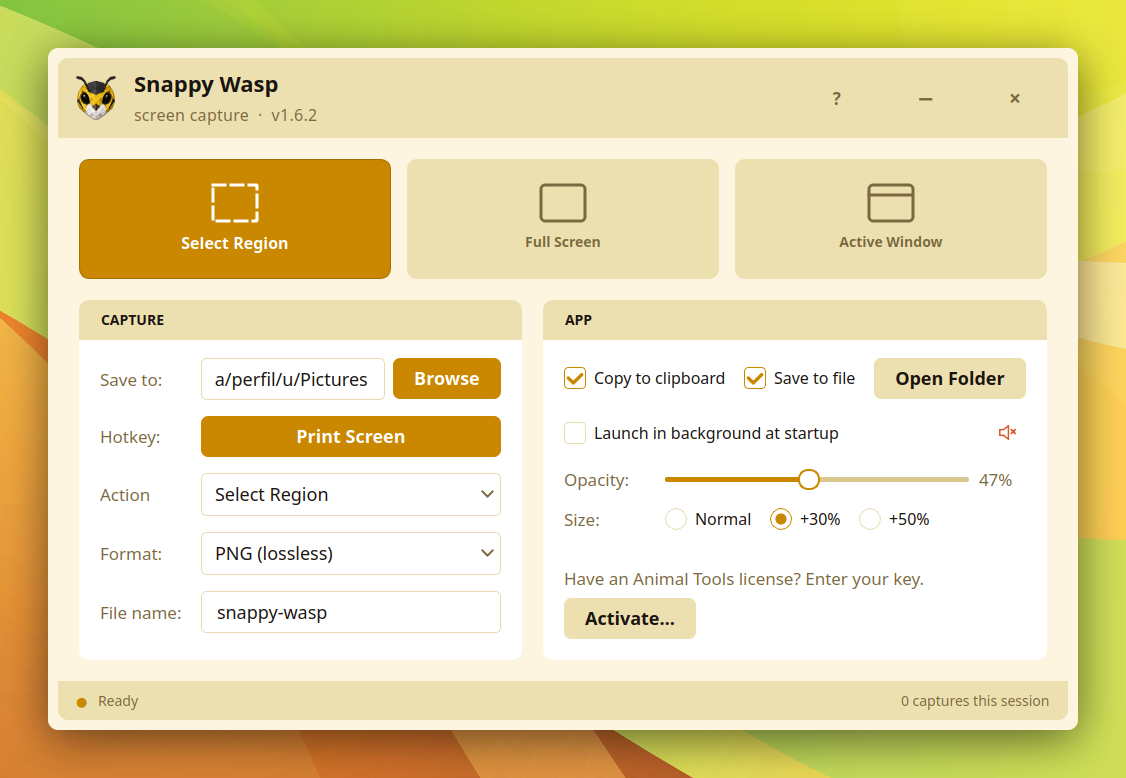
Three ways to capture, and every setting on one screen: folder, hotkey, format, clipboard
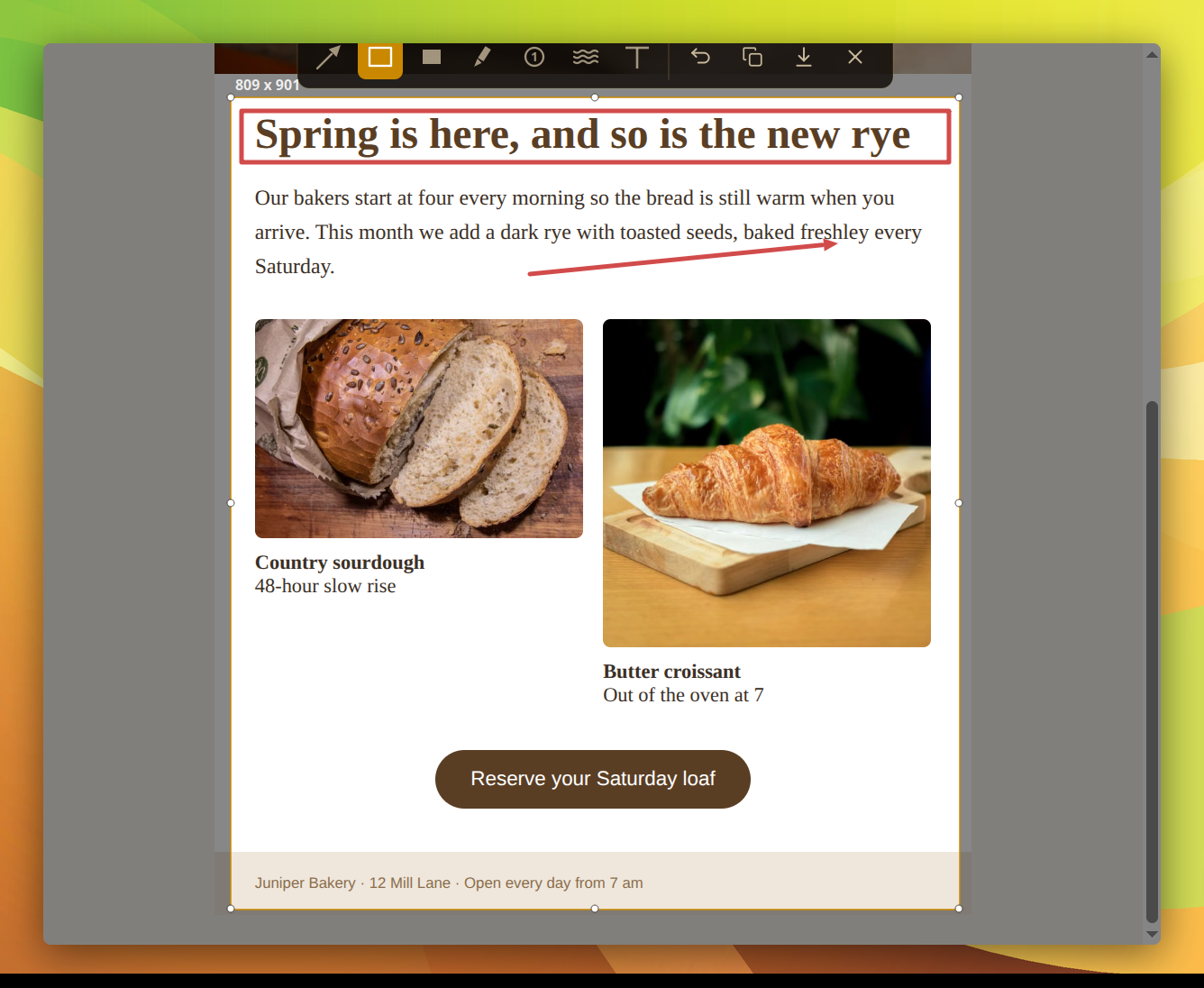
Point at the problem with an arrow and frame what matters with a box
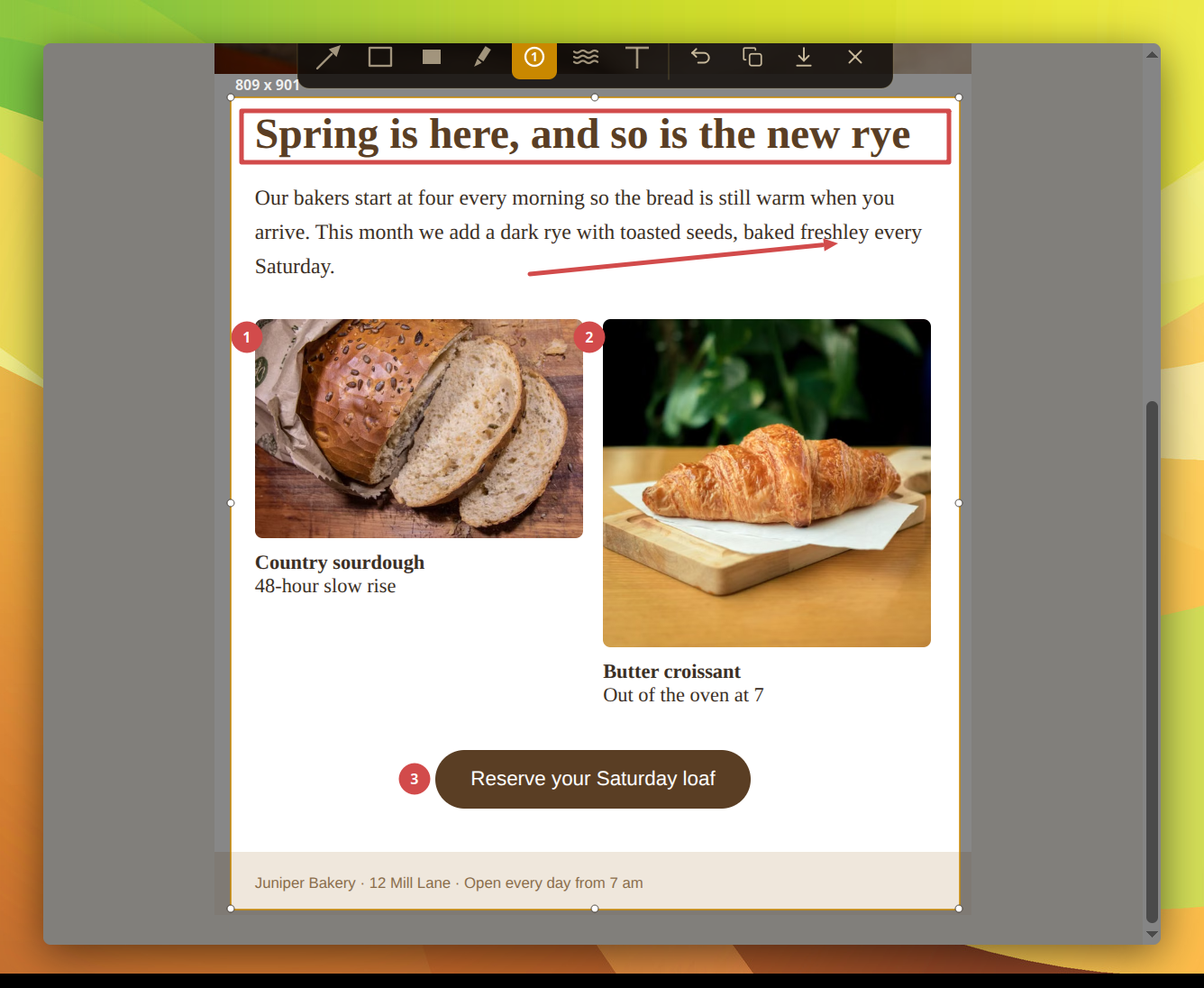
Numbered markers count up on their own, one click each
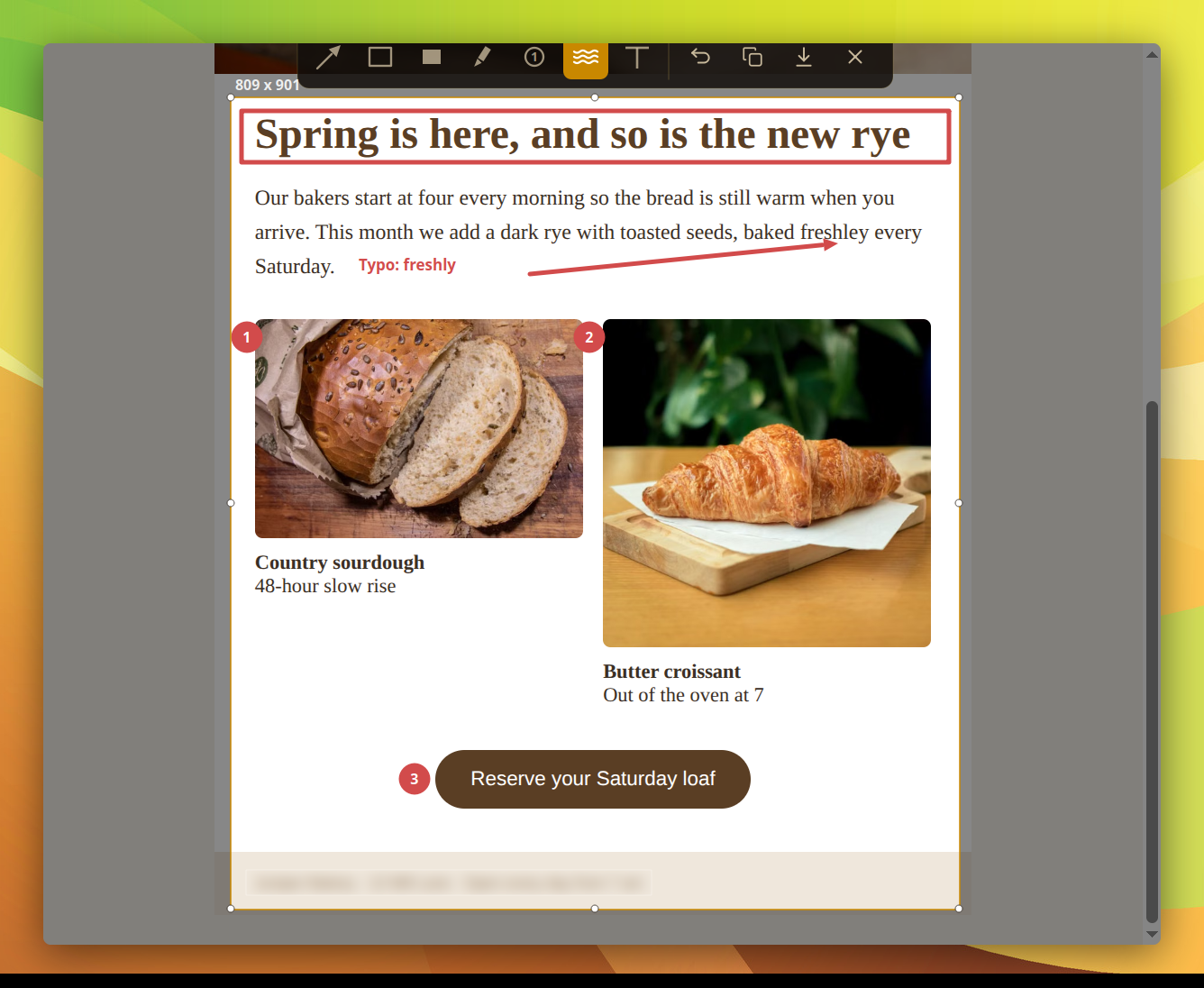
Add a note, and blur anything private before you share
The finished capture, saved as a PNG and copied to the clipboard