Complete Guide
Neat Bluejay
Open a document, write it, export it to DOCX or PDF. No intermediate steps, no account, no cloud — and the shortcuts you already know from Word.

1. What Is Neat Bluejay?
Neat Bluejay is a focused document editor for Windows. You open a file, you write it, and you export it to DOCX or PDF — without the round trip through a second program, without an export wizard, and without waiting for a suite to finish loading before you can type the first word.
It paginates while you write. Text fills an A4, Letter or Legal page, the page ends, and the rest continues on the next one — with editable headers and footers, page numbers included. What you see on screen is the document that comes out of the printer, which is the part most lightweight editors skip.
Who it is for
Freelancers and consultants who produce proposals, reports and letters: people who already know what they want to write and need the tool to stay out of the way. And students handing in formal documents who would rather not pay for Microsoft 365 or depend on Google Docs.
2. Installation
Get it from the Neat Bluejay page. It is a single .exe, signed with our code-signing certificate.
Neat Bluejay installs into your own user folder, so Windows does not ask for administrator rights. Nothing is written outside your account.
Find it in the Start menu as Neat Bluejay - Document Editor. It is named by what it does, so Windows Search finds it whether you remember the animal or the job.
3. First Launch
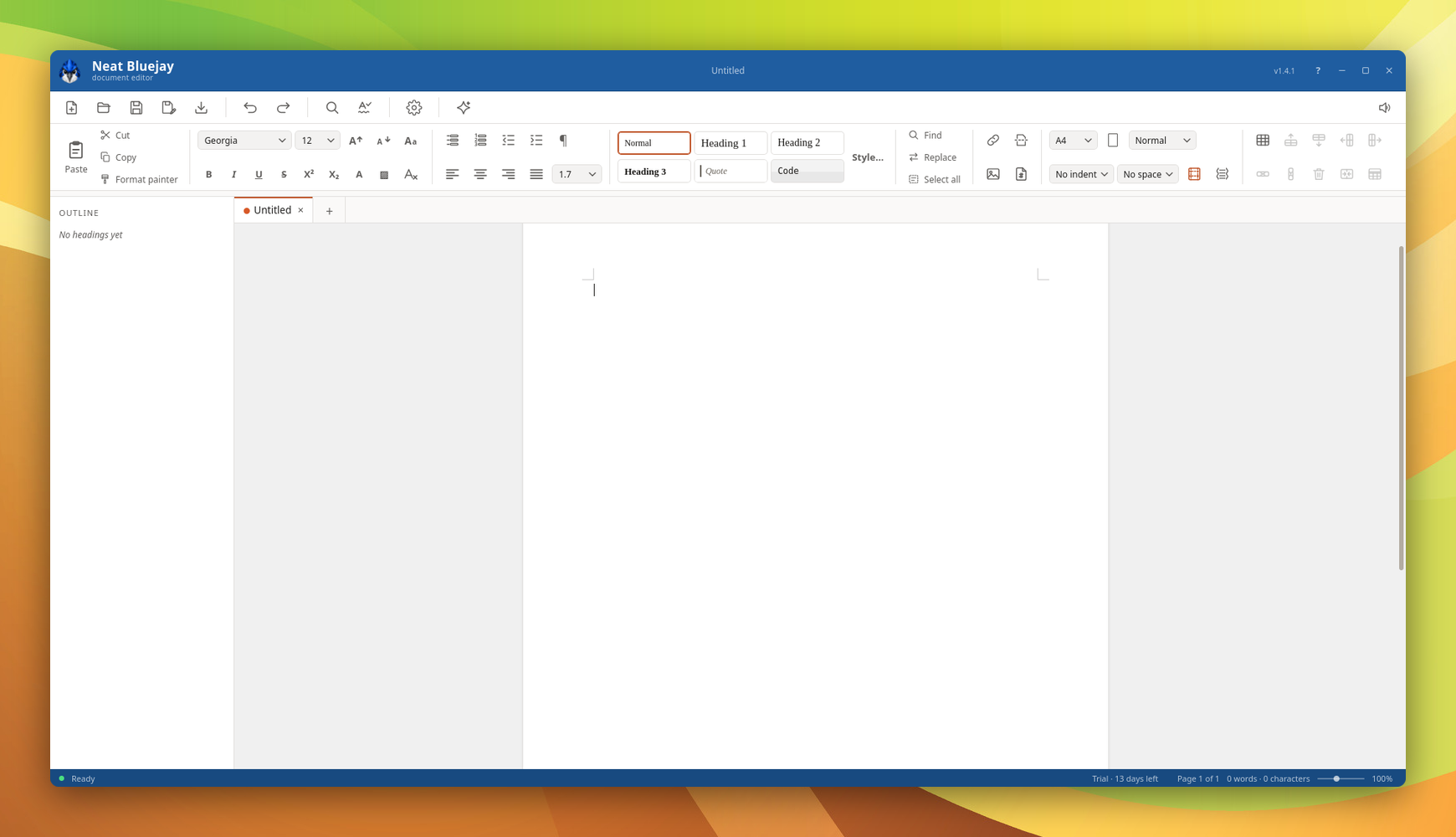
Neat Bluejay opens in seconds on an empty document, ready to type. The ribbon sits at the top, the page in the middle, and the status bar along the bottom with the word count, the zoom level and your trial or licence state.
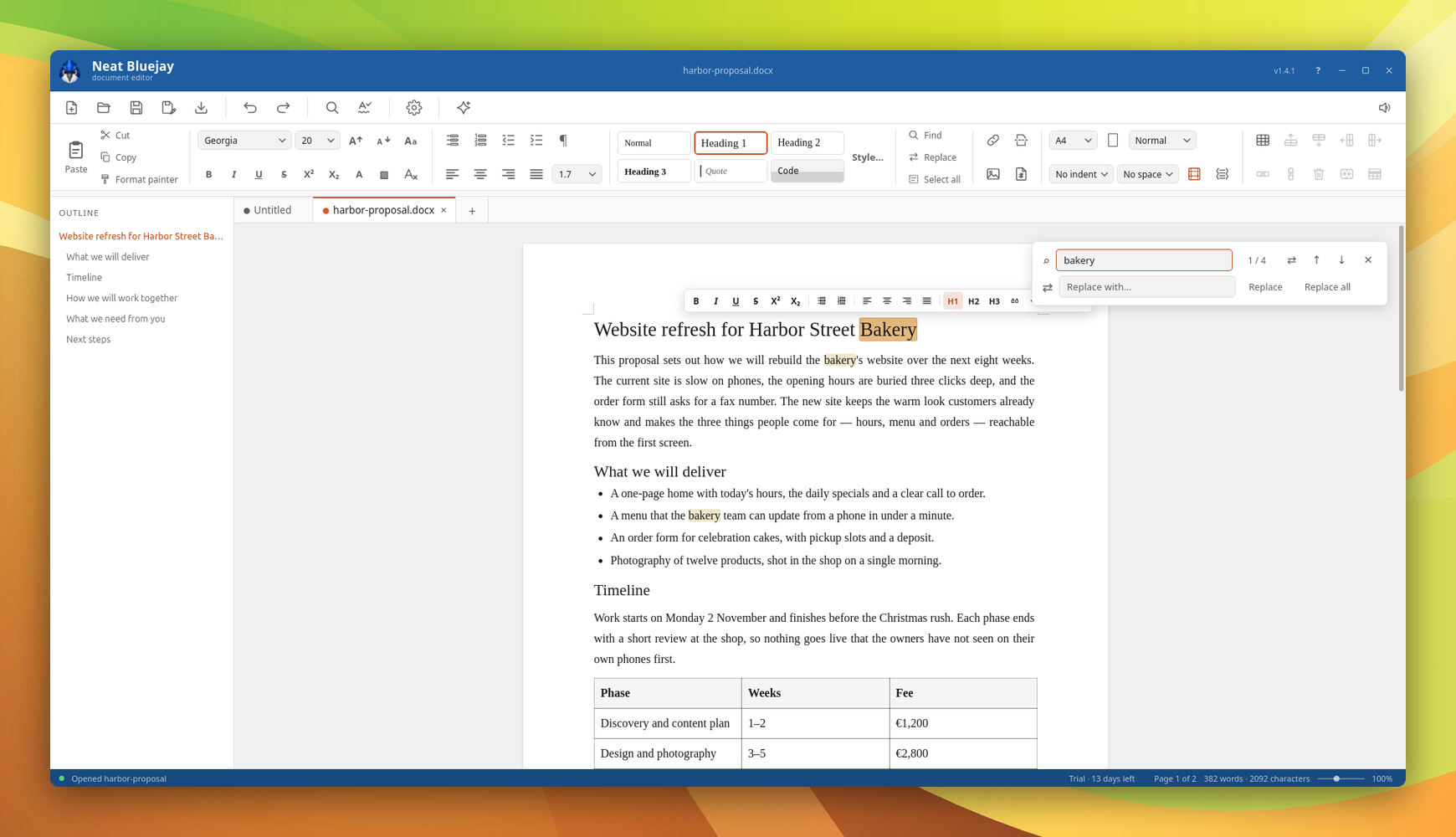
Nothing else asks for your attention. The formatting bar you see when text is selected disappears the moment you stop selecting, so the canvas stays clean while you write.
Your free trial
There is no "start my trial" button. The app asks for the trial itself on first launch and shows the days remaining in the status bar. You do not sign up, and you do not enter anything.
4. Core Workflow
The whole point of Neat Bluejay is that this is short. Four steps from a blank page to a file you can send.
Ctrl N for a new one, Ctrl O to open an existing .docx, .rtf, .odt, .txt or .md. Each one opens in its own tab.
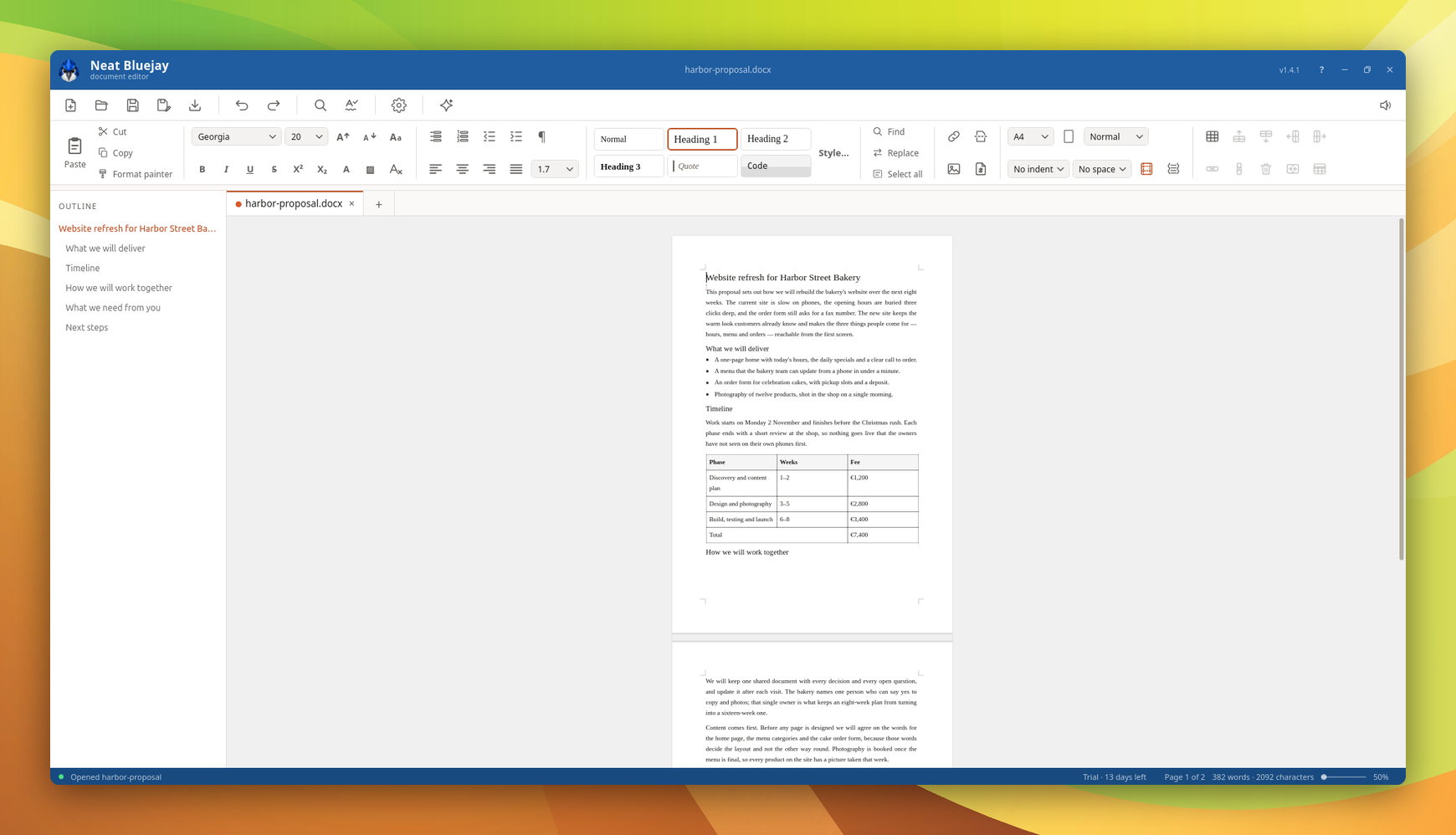
Type. The page breaks where a page ends. Select text and the floating bar appears with the formatting you reach for most; the full ribbon is always above.
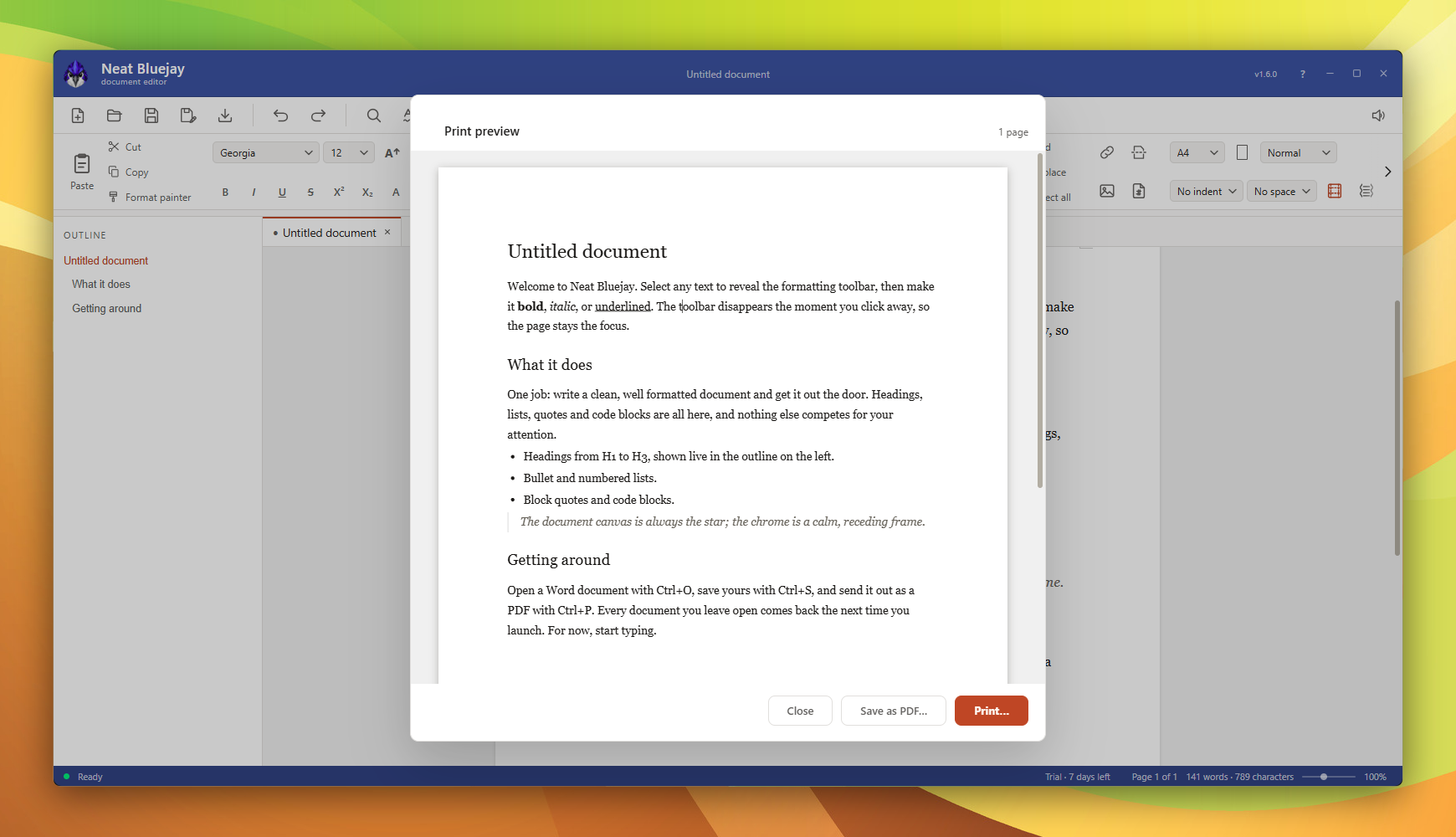
The outline on the side follows your headings, so you can jump around a long document without scrolling. The status bar keeps the word and character count in view.
Ctrl S saves. F12 saves a copy elsewhere. Ctrl P opens the print preview, where you can print or write a PDF with the real pagination.
5. Formatting & Styles
Everything a word processor is expected to do to text, grouped in the ribbon the way Word groups it. The floating bar that appears over a selection carries the ones you use constantly, so your hands stay near the text.
🅰️ Font & size
Typeface and size, applied to the selection or from the cursor onwards.
𝗕 Emphasis CtrlB
Bold, italic, underline, strikethrough, superscript and subscript.
🎨 Colour & highlight
Text colour and highlighting, both exported faithfully to DOCX and PDF.
📐 Alignment CtrlL
Left, centre, right and justified — the same four keys as Word.
📑 Styles gallery
Normal, Heading 1–3, Quote and Code, each shown in its own style. The headings build the outline and survive a DOCX round trip; Normal turns any of them back into plain text.
📋 Lists & blocks
Bullets, numbering, quote and code blocks, line spacing and indents.
🖌️ Format painter
Copy the look of one piece of text and paint it over another, as in Word: one click paints once, a double-click keeps painting until Esc .
🔠 Change case
UPPERCASE, lowercase, Sentence case and Capitalize Each Word from the Aa button, keeping bold and the rest of the formatting.
¶ Paragraph marks
Show where each paragraph and each page break ends. Turning them on moves nothing, and they never print.
6. Pages, Headers & Printing
Neat Bluejay paginates as you type, in A4, Letter or Legal. Headers and footers are editable — double-click into them — and can carry the page number. If you would rather read without cuts, there is a continuous mode in the style of Google Docs' Pageless.
Printing and PDF
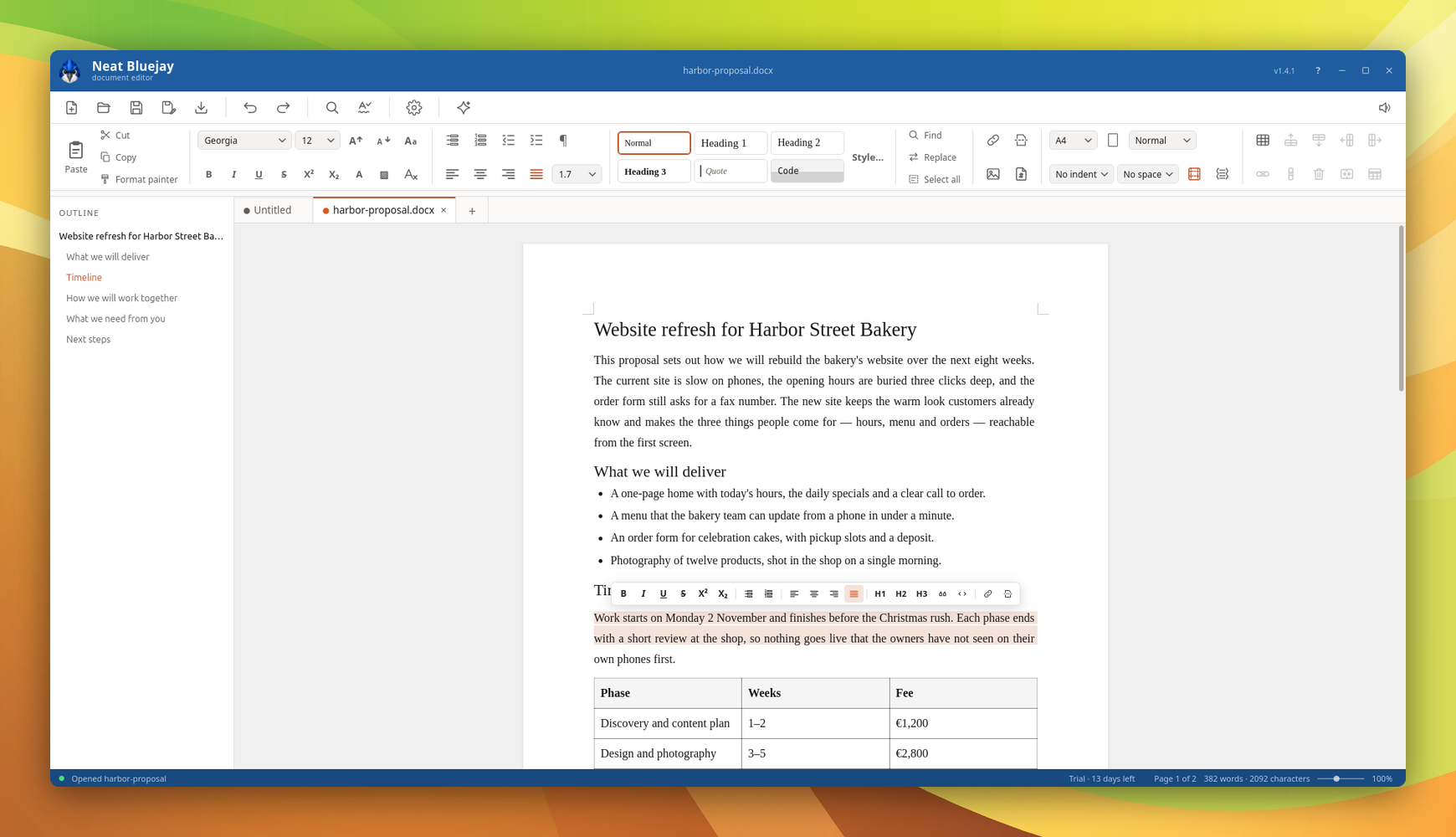
The print preview is Neat Bluejay's own dialog, dressed like the rest of the app. It does not draw a simulation of your document: it renders the real PDF that has already been generated, so what you see is exactly what comes out. From there, Print… hands over to the system's print dialog, and Save as PDF… writes the same bytes wherever you point it.
7. Documents & File Formats
Several documents stay open at once, each in its own tab, with autosave and session restore. Close a tab with unsaved changes and Neat Bluejay asks first.
What it opens
.docx,.rtf,.odt— imported with their structure: headings, quote, code, bold, italic, links, images and lists..txtand.md— open in a new tab; from Markdown it recognises headings and paragraphs.- Saving them — Neat Bluejay saves as
.docx. Ctrl S on a document you opened from a.txt,.md,.rtfor.odtasks for a name, proposing the same one as.docx; the original file is left untouched.
What it writes
.docx and .pdf, without losing the elements it supports. Those are the output formats; the working format is internal.
08Writing Tools
AI tools, if you want them
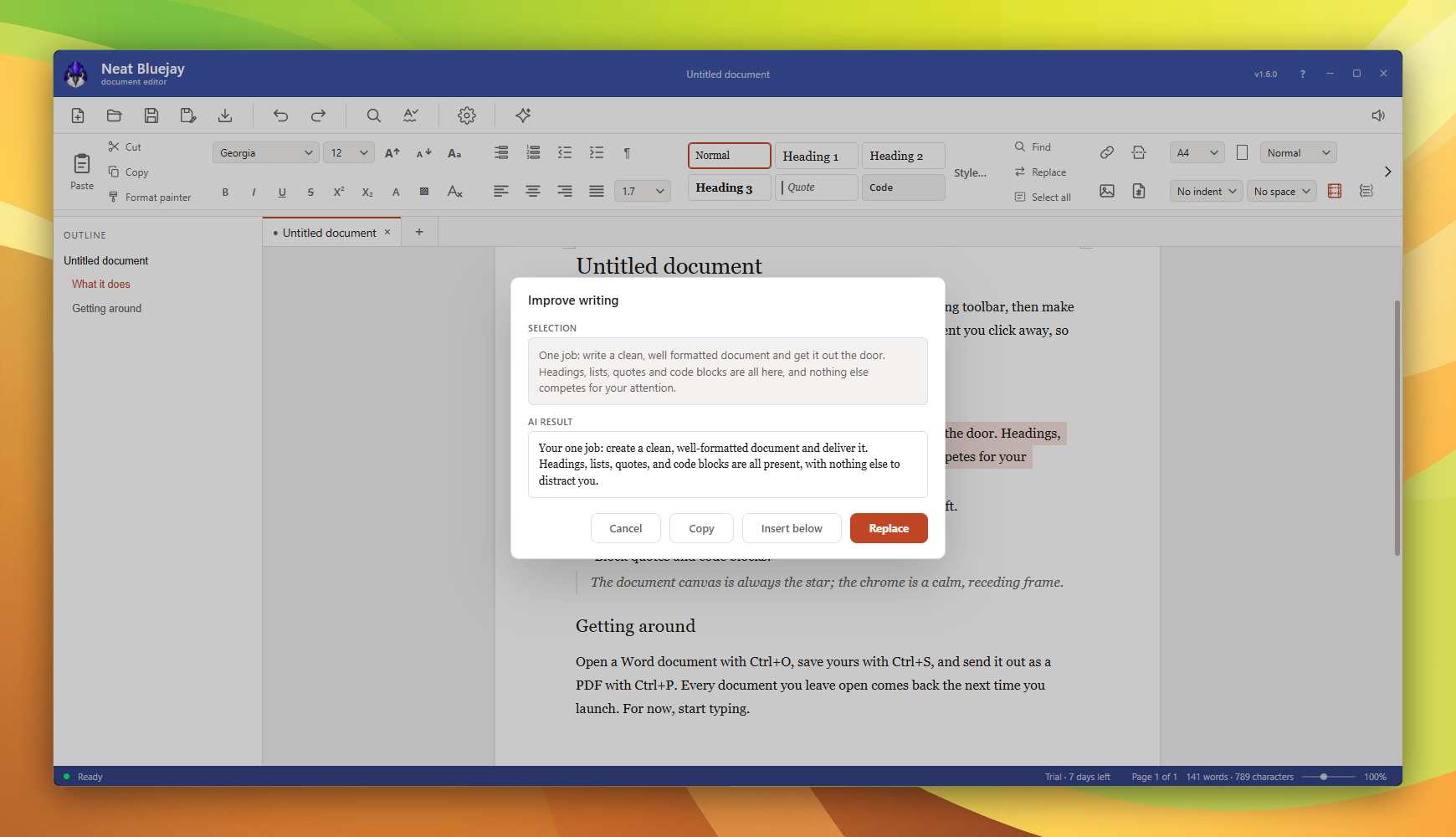
Optional and off until you set them up: correct, improve, translate, summarise, and turn plain text into headings and lists. Every one of them shows you a preview before anything is applied to your document — nothing is rewritten behind your back.
🧭 Live outline
Built from your headings, for moving around a long document.
📝 Spell check F7
With Add to dictionary and Ignore in the context menu — neither of which the browser's own checker offers.
🔗 Links CtrlK
Insert them, or type a URL and let it detect itself. Ctrl+click follows one.
🖼️ Images
From the button, pasted from the clipboard, or dropped onto the window. Resize by dragging a corner.
🔢 Word count
Words and characters, always in the status bar.
AI tools, if you want them
Optional and off until you set them up: correct, improve, translate, summarise, and turn plain text into headings and lists. Every one of them shows you a preview before anything is applied to your document — nothing is rewritten behind your back.
They need your own Google Gemini key, which is stored in the system credential vault rather than in a file next to the app.
9. Settings & Configuration
Neat Bluejay keeps settings to a minimum, and that is deliberate: there is very little to configure. What there is lives where you need it.
Interface size
The gear in the icon bar, just before the speaker, opens Settings. Under Accessibility → Interface size you pick Normal, Large (+30%) or Extra large (+50%): bars, buttons, the ribbon, menus and dialogs grow, while the page, your document's type and the exported PDF stay exactly the same. It applies when you press OK and is remembered.
Theme
In the same window, under Appearance → Theme, you choose Light, Dark or Match Windows, which follows the light or dark mode set in Windows and switches when Windows does. In the dark theme the bars and panels turn graphite, while the page stays white and your document keeps its own colours; PDFs and printouts come out exactly the same in both themes.
Page setup
Page size — A4, Letter or Legal — and continuous mode are in the Page group of the ribbon, next to headers, footers and page breaks.
AI key
The first time you click an AI tool with no key configured, the settings screen opens by itself. Paste your Google Gemini key there; it goes into the system credential vault. Without a key, the AI buttons simply do nothing but open that screen — the engine is not even loaded.
Licence
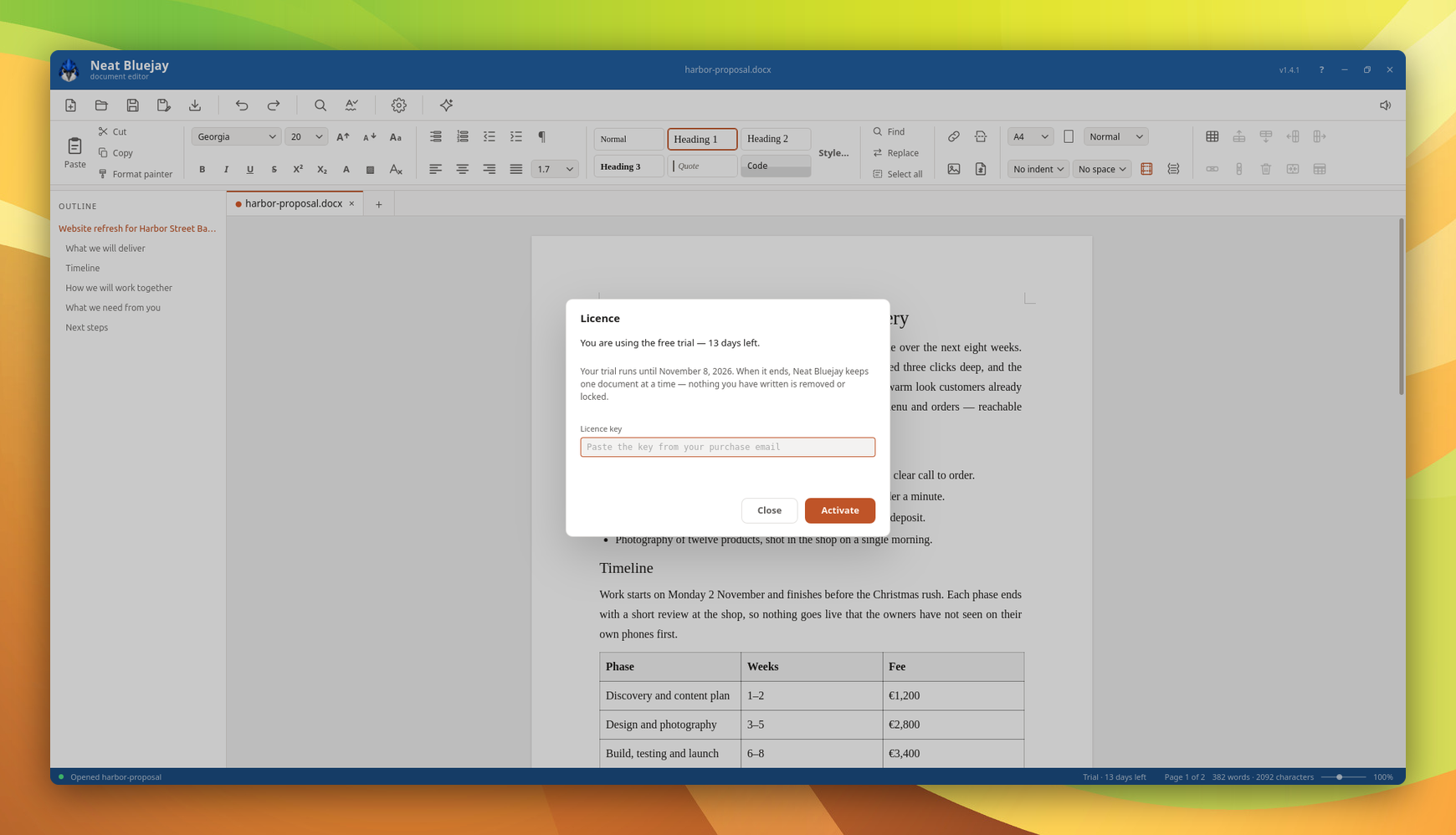
The indicator in the status bar is the single place a key is entered. It opens a dialog that activates this machine, deactivates it if you want to move your licence to another computer, and explains server errors in words rather than showing a code.
10. Tips
- Keep the original if you import. A DOCX comes in with its structure but not its direct formatting, so the imported copy is a starting point, not a replica.
- Use headings, not big bold text. H1–H3 are what build the outline, what survives the DOCX round trip, and what lets you navigate a long report.
- Drag images straight onto the window. Faster than the Insert button, and the same result: the image is stored inside the document.
- Number your pages once, in the footer. Double-click into it, drop the page number in, and every page follows.
- Check the PDF in the preview, not after. It shows the real generated file, so a pagination surprise turns up before you send it, not after.
- Ctrl+1 to Ctrl+9 jump between documents. With several proposals open, that is quicker than reaching for the tab bar.
The complete list is in Keyboard Shortcuts.
11. FAQ
Can I work with tables?
Yes, since version 1.2.0. A table in a .docx or .odt arrives whole — cells, header row and merged cells — and leaves the same way in the exported DOCX and PDF. To create one, the table button on the ribbon opens a grid you drag across; to change one, a Table group appears at the end of the ribbon while the cursor is inside it: add or delete rows and columns, merge or split cells, mark the header row. Two limits worth knowing: in the PDF the header row is not repeated on the pages after the first (in the DOCX it is, because Word repeats it), and a single row taller than a whole page overflows instead of splitting. What Neat Bluejay still does not do is track changes — if your work depends on that, Word is still the right tool.
Is it a Markdown editor?
No. It reads a .md when you open one, recognising headings and paragraphs, but it does not write Markdown and does not show you the syntax. If plain text and Markdown are what you actually work in, Clever Cat Notepad is the one built for that — and it is free.
Where are my documents stored? Do I need an account?
No account, and no cloud. Your documents are ordinary files on your own machine, wherever you saved them. Nothing is synced anywhere.
Can I define my own paragraph styles, or use macros?
No. Neat Bluejay deliberately stops at writing and formatting rather than designing. There are no custom styles and no macro system.
What happens when the 14 days are up?
Nothing is deleted and nothing is closed. You can keep writing, saving and exporting whatever is already open, and restoring your session brings everything back. What you cannot do is open new documents until you close what you have. A licence, included with Animal Tools, lifts that.
12. Keyboard Shortcuts
Neat Bluejay follows Word's conventions. If your fingers already know them, they work here.
Documents
| Action | Shortcut |
|---|---|
| New document | Ctrl N |
| Open | Ctrl O |
| Save | Ctrl S |
| Save as | F12 or Ctrl Alt S |
| Close document | Ctrl W |
| Next / previous document | Ctrl Tab add Shift to go back |
| Go to document 1–8 | Ctrl 1 … Ctrl 8 |
| Go to the last document | Ctrl 9 |
| Print preview | Ctrl P print or save as PDF from there |
Writing & formatting
| Action | Shortcut |
|---|---|
| Bold | Ctrl B |
| Italic | Ctrl I |
| Underline | Ctrl U |
| Undo | Ctrl Z |
| Redo | Ctrl Y |
| Align left | Ctrl L |
| Align centre | Ctrl E |
| Align right | Ctrl R |
| Justify | Ctrl J |
Finding & viewing
| Action | Shortcut |
|---|---|
| Find | Ctrl F |
| Find and replace | Ctrl H |
| Zoom in | Ctrl + |
| Zoom out | Ctrl - |
| Back to 100% | Ctrl 0 |
Inserting & proofing
| Action | Shortcut |
|---|---|
| Insert or edit a link | Ctrl K |
| Follow a link | Ctrl + click |
| Spell check on / off | F7 the key Office uses for it |
Ready to install?
Free for 14 days. No account, no cloud, no noise.
Get Neat Bluejay →