Complete Guide
Tappy Woodpecker
Every keystroke sounds like a real mechanical switch — on any keyboard, in any app — without ever taking the focus off what you're typing in.

1. What Is Tappy Woodpecker?
A laptop keyboard, a membrane board, a hushed low-profile office keyboard — none of them sound or feel like a real mechanical keyboard, and getting that back usually means one of two things: buying real mechanical switches, or installing Mechvibes, the ~44 MB Electron incumbent with a community pack marketplace to dig through before the first click even plays.
Tappy Woodpecker hooks every keystroke system-wide and plays a curated mechanical-switch sound in whatever app you're typing in, without ever stealing focus. Pick from five curated packs by ear with a single preview button, and nothing about what you type is ever logged — a keystroke only ever triggers a sound, stated plainly in the app's own interface.
Two kinds of typists reach for it. Some can't have a real mechanical keyboard where they work — an open office, back-to-back meetings, a shared living space, typing late at night — and want the click for themselves, in their own headphones, without disturbing anyone. Others simply find the rhythmic, percussive sound of typing helps them focus, or is satisfying in its own right. Developers, writers, students, and office workers who couldn't tell a Cherry MX from a Gateron and don't want to learn — they open the app, pick a pack by ear, and keep typing.
2. Installation
Go to thestromboliproject.com/tools/tappy-woodpecker/ and download the installer — Windows, or the Linux build (.deb or AppImage).
Double-click the installer and follow the prompts. No extra components are required.
Find it in your Start menu. A splash screen appears with the app's own sound, then it settles quietly into the system tray, already playing a default sound pack.
3. First Launch
The first thing you see is the splash — the woodpecker mark on black, paired with the app's own launch sound — before Tappy Woodpecker settles quietly into the system tray. There's nothing to configure to get started: it opens already playing a default sound pack.

Tray icon
Look for the woodpecker icon in your taskbar's system tray (click the ^ arrow if it's tucked into the hidden-icons overflow). Right-clicking it lets you toggle the sound on or off directly — the same switch as the Enabled checkbox inside the Settings window — without opening any panel at all.
4. Core Workflow
There's no setup wizard to get through — the day-to-day flow is picking a pack once, then typing.
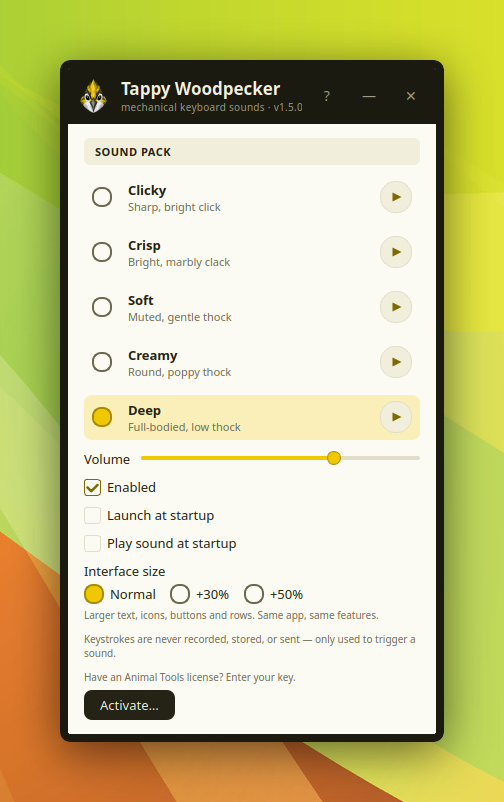
This is where the five sound packs, the volume slider, and the Enabled checkbox all live.
Hit ▶ on Clicky, Crisp, Soft, Creamy, or Deep until one sounds right — no switch names to look up first.
One slider controls how loud the sound plays.
Every key you press, in any app, triggers a sound sample instantly, without pulling focus away from what you're doing.
Space, enter, and backspace sound different from the rest of the pack, and the pitch shifts slightly on every press so a run of the same letter never sounds like a machine gun.
5. Sound Packs
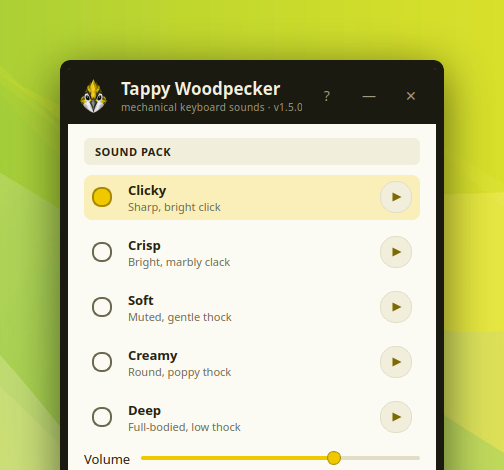
Five packs, each with a completely different character. Hit the ▶ button next to any pack to hear a short burst of typing before committing — so you choose by ear, not by reading a switch spec sheet you've never had to learn.
🔵 Clicky
Sharp, bright click.
⚪ Crisp
Bright, marbly clack.
🟤 Soft
Muted, gentle thock.
🟡 Creamy
Round, poppy thock.
🔴 Deep
Full-bodied, low thock.
Every keystroke also gets a small random pitch shift, so holding down a key — or typing a long run of the same letter — never sounds like a machine gun firing the exact same sample on repeat.
6. Special Keys
Inside every pack, three keys break from the regular keystroke sample: space, enter, and backspace. It's a small detail that pushes the illusion further than a single repeating click ever could.
␣ Space
Lower and more stabilized than a normal keystroke — the sound a spacebar's stabilizer bar actually makes.
⏎ Enter
Its own distinct sample inside the pack, separate from the regular keystroke sound.
⌫ Backspace
Also gets a sound of its own, distinct from the regular keystroke sound.
7. Volume & On/Off
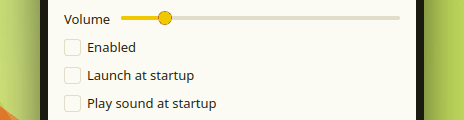
One slider controls how loud every pack plays, and one switch controls whether it plays at all. Both live in the Settings window — and the on/off switch is also reachable straight from the tray icon's right-click menu, without opening the window at all.
🔊 Volume
One slider sets how loud the sound plays, across every pack.
⏻ Enabled
Turns the sound on or off from the Enabled checkbox in Settings, or from the tray icon menu — no need to close the app to mute it.
🔑 Animal Tools license
If you already bought the collection, activating your key here does not unlock anything in Tappy Woodpecker itself (it stays free either way); it only hides the card that promotes the other tools.
8. Tray & Startup
Tappy Woodpecker is built to live in the background, not on your taskbar.
🗂️ System tray
Lives quietly in the system tray — no window to manage while it's running.
🔁 Start with Windows
An optional checkbox in Settings launches the app automatically the next time you log in.
🔕 Quiet startup
Untick Play sound at startup in Settings and the app opens without its launch sound. Your typing sounds stay on.
🛡️ Single instance
A single-instance guard means opening it again while it's already running won't launch a second copy.
9. Settings & Configuration
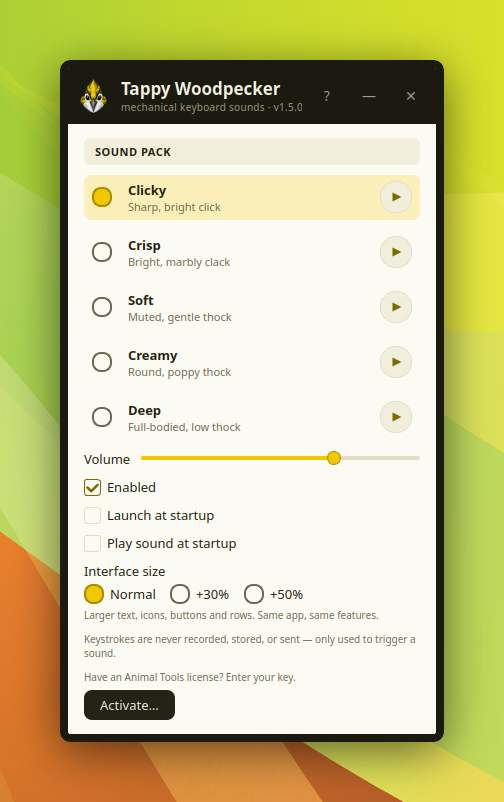
Open Settings from the tray icon. Everything configurable in Tappy Woodpecker lives in this one window:
- Sound pack — one of five curated packs (Clicky, Crisp, Soft, Creamy, Deep), chosen by ear with the ▶ preview button.
- Volume — one slider for how loud the sound plays.
- Enabled — turns the sound on or off; mirrors the tray icon's quick toggle.
- Start with Windows — launches the app automatically at login.
- Accessibility Mode — Interface size offers Normal, Large (+30%) and Extra large (+50%). The larger ones grow the whole settings window: text, buttons, checkboxes and pack rows. Nothing is hidden or changed. It applies the moment you pick it, and moving with Tab outlines the focused control clearly. If the window no longer fits your screen, it scrolls.
- Help (?) — a button in the window's title bar opens this online guide directly from the app.
The window also states the app's privacy stance directly, in plain text: keystrokes are never recorded, stored, or sent — only used to trigger a sound.
Every choice here is remembered between launches — pack, volume, Enabled, Start with Windows and Accessibility Mode all persist automatically, so there's nothing to set up twice.
10. Tips
- Preview before committing. Hit ▶ on all five packs before picking — the difference between Clicky, Crisp, Soft, Creamy, and Deep is easier to hear than to describe.
- Toggle straight from the tray. Flip the sound on or off from the tray icon's right-click menu without opening Settings at all — quick before a call.
- Turn on Start with Windows. Enable it once in Settings so the sound is back the moment you log in, with no need to relaunch the app.
- Pick by feel, not by spec sheet. The pack names describe how they sound, not what switch they imitate — no need to know a Cherry MX from a Gateron.
- Nothing is ever logged. A keystroke only ever triggers a sound — the app states this plainly in its own interface, right next to the controls.
Tappy Woodpecker doesn't use any keyboard shortcuts — see why in Keyboard Shortcuts ↓.
11. FAQ
Is there a keyboard shortcut to turn the sound on and off?
Not yet. A global hotkey was part of the original plan, but it didn't make it into this release — it's an acknowledged gap, not a hidden feature. Today the sound toggles from the tray icon's right-click menu or the Enabled checkbox in Settings.
Can I browse or add community sound packs?
No. There's no marketplace and no pack browser — that's a deliberate choice, not a missing feature. Tappy Woodpecker ships with five curated packs and nothing to configure beyond picking one.
Does it play a sound when I click the mouse?
No. Only keyboard keystrokes trigger a sound.
Can I record my own keyboard to create a custom pack?
No. The five packs are fixed and curated; there's no recording or pack-creation tool built into the app.
Does it record, store, or send my keystrokes anywhere?
No. A keystroke only ever triggers a sound — nothing about what you type is recorded, stored, or transmitted. This is stated directly in the app's own Settings window.
Is it available for macOS or Linux?
Linux, yes — as a .deb and an AppImage, currently experimental and sometimes a version behind Windows. No macOS build.
12. Keyboard Shortcuts
There's no glossary of shortcuts here, and that's worth explaining rather than leaving blank.
Tappy Woodpecker doesn't bind a global hotkey to anything. Toggling the sound on and off is only possible two ways today — right-click the tray icon, or use the Enabled checkbox inside the Settings window. A dedicated hotkey was part of the original plan for this app, but it didn't make it into this release; it's an acknowledged gap, not a hidden option waiting to be discovered.
Ready to install?
Free download. No account, no marketplace, no noise.
Download Tappy Woodpecker →