🌋 The Stromboli Project
Free 🪟 Windows

Tappy Woodpecker Keyboard Sounds

Your keyboard, with the click it never had.

It sits in the system tray and plays a mechanical-switch sound on every keystroke, in every application, without ever stealing focus from what you are typing in.

No account, no email, no licence key. Tappy Woodpecker is free, and the five packs ship inside the app.

Windows and Linux desktop builds

Windows may show a SmartScreen warning on first launch — click More info → Run anyway.

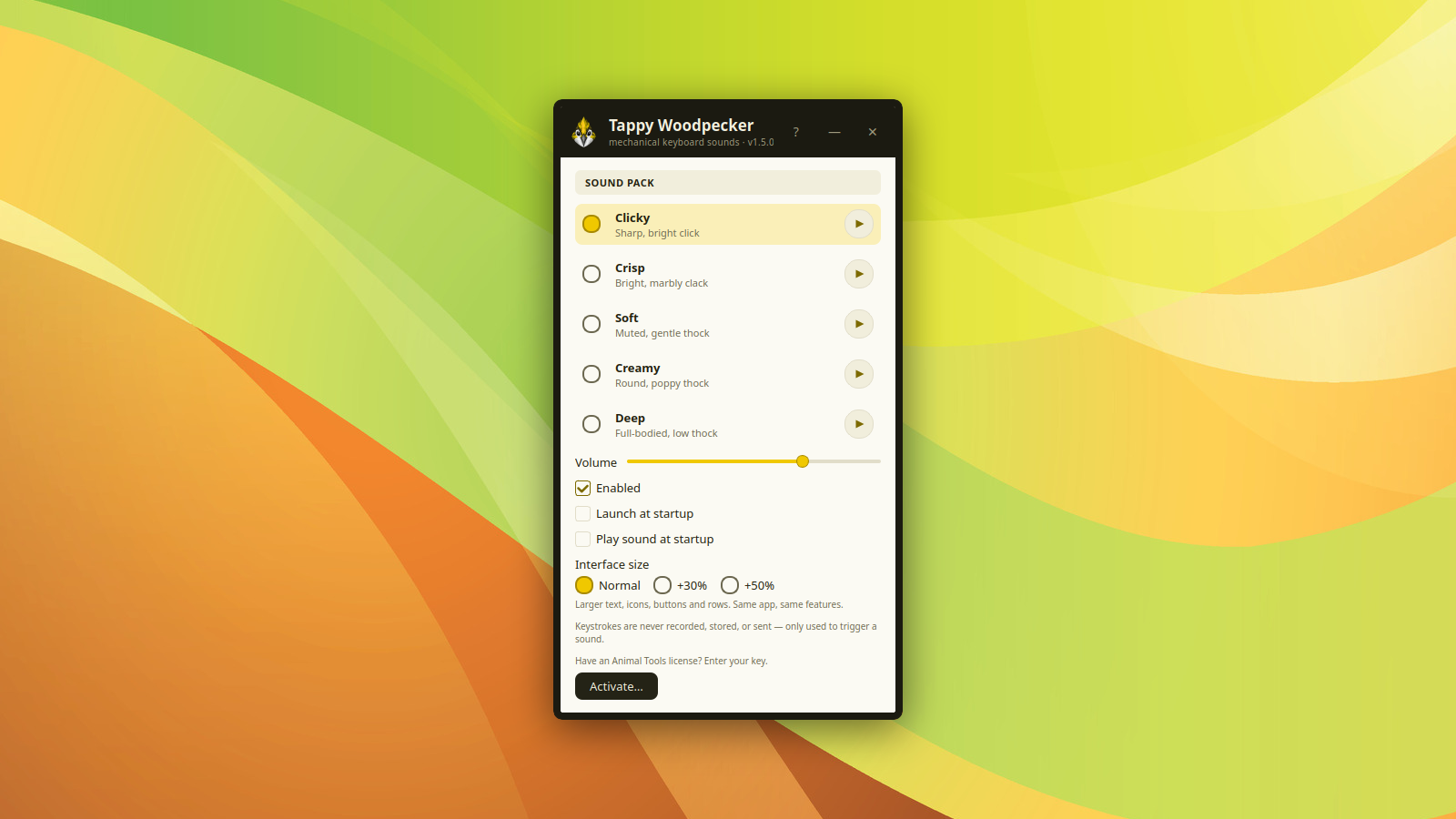
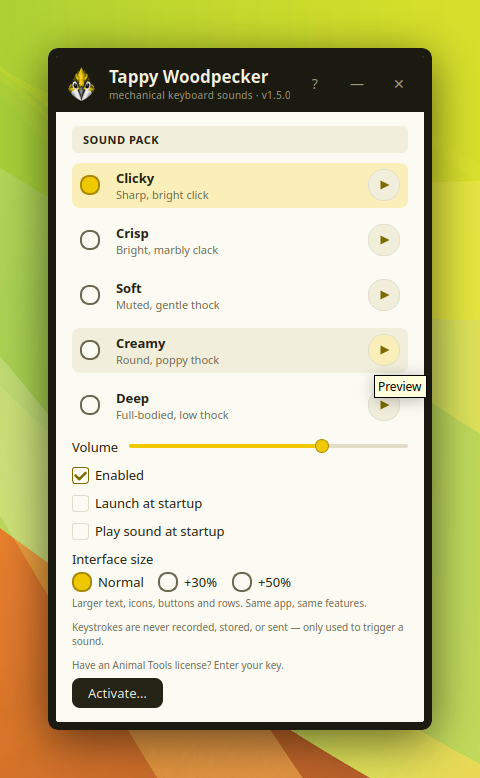
Tappy Woodpecker's settings window listing its five sound packs with preview buttons, one pack active, the volume control below.
Five sound packs, a ▶ to hear each one before you choose, and a volume you set once.

Tappy Woodpecker adds a mechanical keyboard sound to every keystroke, in whatever app has focus — five packs, each key sounding slightly different.

Features

What you hear, and everything you can change about it.

A mechanical sound on every key, everywhere.

  • Works in any application, system-wide
  • Never steals focus from what you are doing
  • Space, enter and backspace sound different
  • Random pitch per keystroke, so repeats do not rattle

Five packs, and a ▶ to hear them.

  • Clicky — bright and marked
  • Crisp — clean marble clack, no click
  • Soft — muted and gentle · Creamy — round, lubed thock
  • Deep — low and full-bodied
  • Preview burst per pack: pick by ear, not by name

Volume and an off switch, where you need them.

  • Tray menu, or the Enabled box in Settings
  • Remembers pack, volume and whether it was on
  • Starts with Windows if you want it to
  • One instance only, never two sounds at once
  • Accessibility Mode: the window 30% or 50% larger, nothing hidden

Keystrokes trigger a sound. Nothing else.

  • Never logged, never stored, never transmitted
  • Stated inside the app itself, not only here
  • Signed installer
  • Free, and it stays free
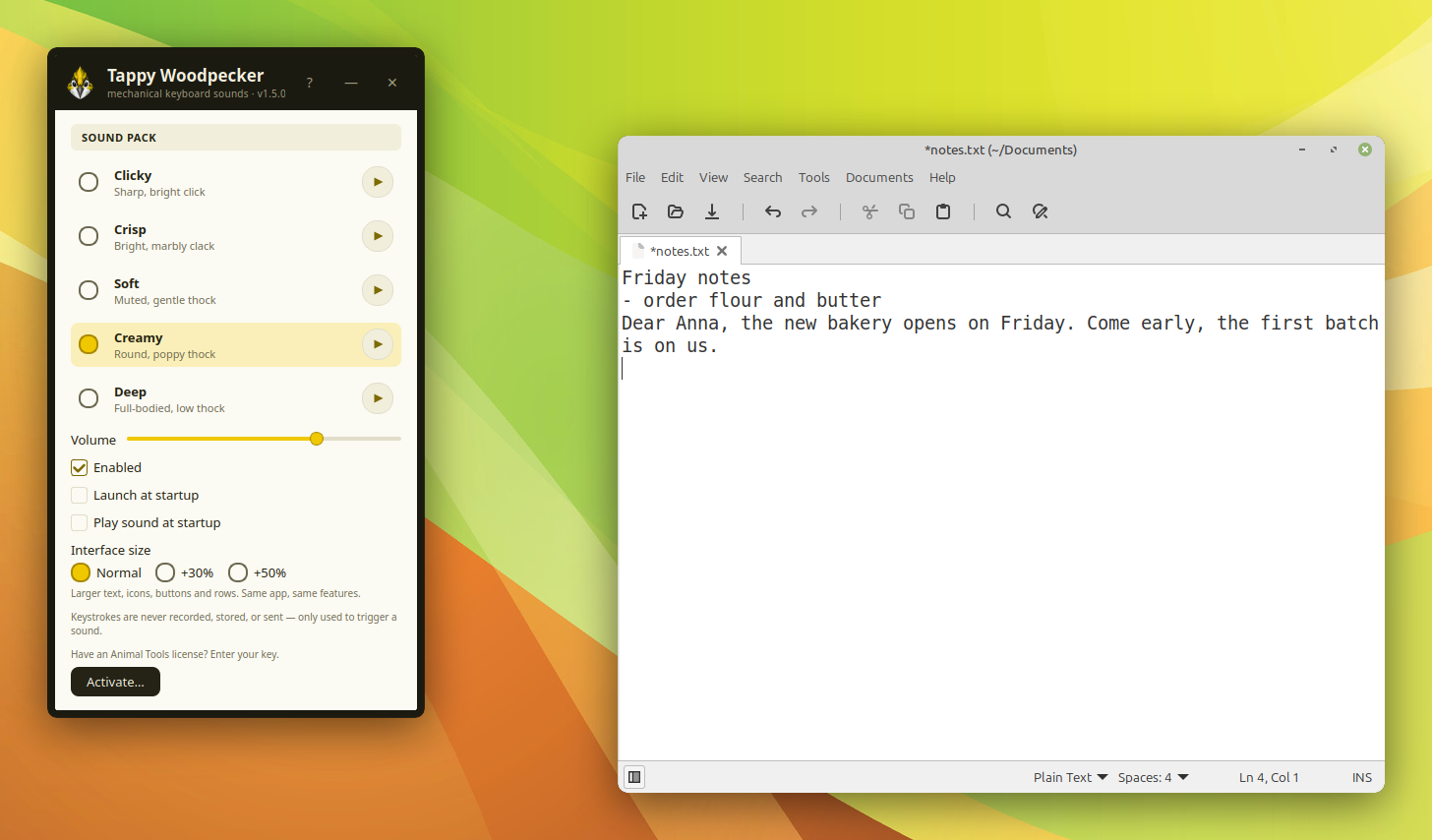
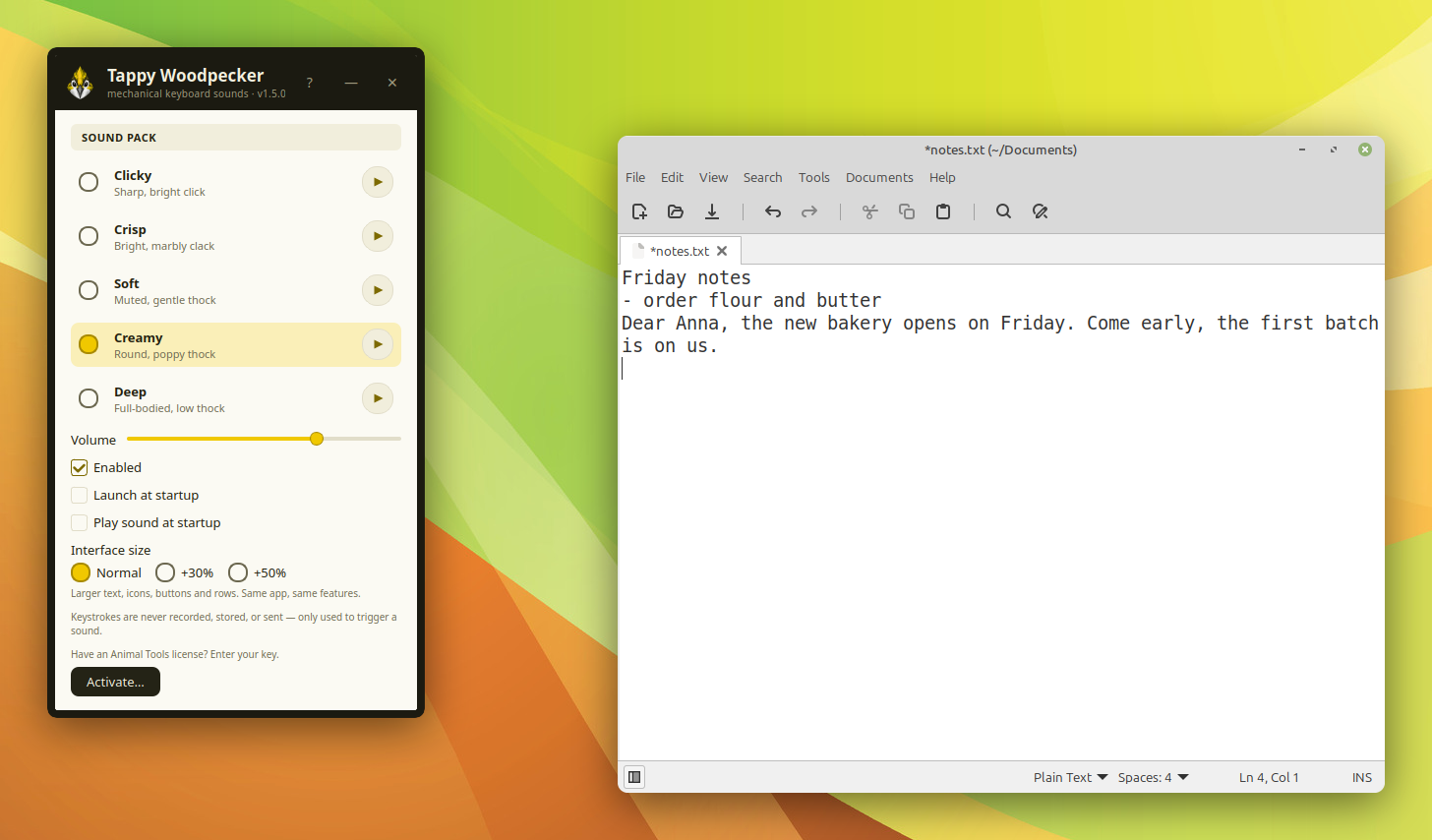
A text editor with a half-typed note next to Tappy Woodpecker, which shows the active pack and volume.
Type wherever you were typing. Tappy Woodpecker stays out of the way, and every key sounds.

What you get

Three things that decide whether you keep it on.

Every key, everywhere

The sound plays system-wide, in whatever app has the focus — and the app never takes that focus away from you.

Picked by ear, not by jargon

Five packs with plain names — Clicky, Crisp, Soft, Creamy, Deep — and a preview button on each. No switch models to learn.

Nothing is ever logged

A keystroke only triggers a sound. Nothing is recorded, stored or sent anywhere, and the app says so itself.

The one thing

Tappy Woodpecker couldn’t be simpler: install it, pick a sound, and every key you press clacks like a mechanical keyboard. No setup, no tweaking, nothing to dig through. It sits quietly in the tray and just works. Pure typing pleasure. :)

— Javier, The Stromboli Project
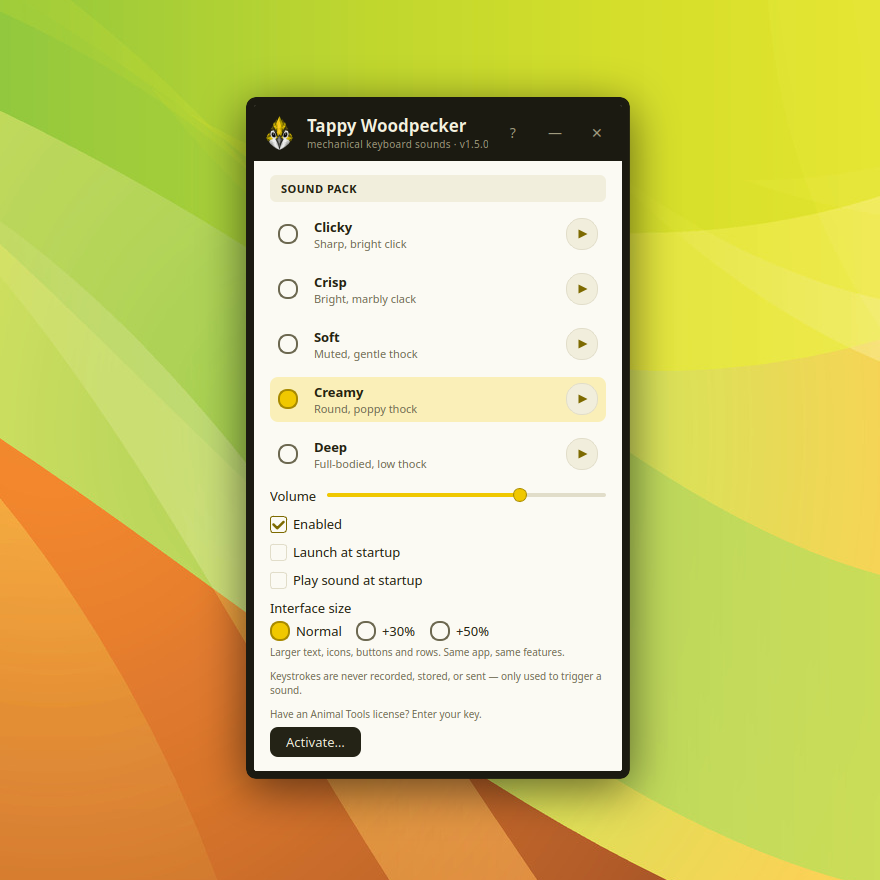
Tappy Woodpecker's window with the five sound packs, Creamy selected, the volume slider and Enabled ticked.
Pick a sound with the play button and every key you press clacks like a mechanical keyboard.

Where it fits

For the keyboard you cannot change.

It is the right tool when…

  • the board you type on is a laptop, a membrane or a deliberately silent one
  • you want the click in your own headphones and nowhere else
  • a rhythmic keystroke is the background noise that keeps you going
  • you want to choose in ten seconds and never open the window again

What it needs

  • Windows: it lives in the tray, with an optional launch at startup
  • A global keyboard hook. That is how it hears the keys — and it is why some antivirus flag it. It is signed, and nothing it hears is kept
  • Linux: .deb and .AppImage; it needs X11 or XWayland
  • macOS: no build. This is a Windows and Linux desktop app

How it goes

Four small moves, and then you forget it is there.

It opens already playing a default pack, so the first thing you do is decide whether you like it — not configure it.

  • Space, enter and backspace get their own sound inside every pack
  • The pitch shifts slightly on each press, so a repeated key never rattles
Step 1 · Install and open It lands in the system tray, already playing a default pack.
Step 2 · Pick a pack Preview Clicky, Crisp, Soft, Creamy and Deep with the ▶ button and keep the one you like.
Step 3 · Set the volume One slider and one Enabled checkbox — from the window or from the tray menu.
Step 4 · Keep typing Your pack, your volume and the launch-at-startup choice are still there tomorrow.
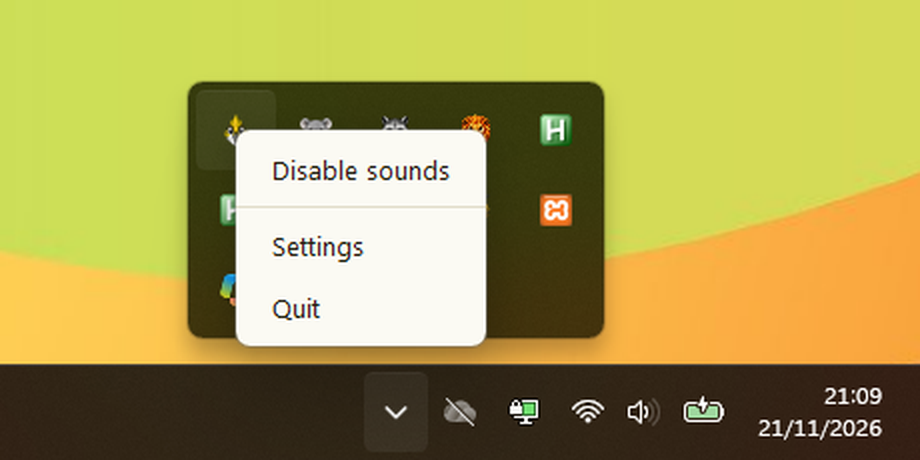
Tappy Woodpecker's tray menu open over its icon in the corner of the Windows desktop, with Disable sounds, Settings and Quit.

Who it is for

People who type a lot on a board that sounds like nothing.

The developer in an open office, the writer at the kitchen table, the student at midnight — with headphones on, so nobody else has to hear it. The guide goes through the packs, the volume and the tray, slowly.

Read the complete guide →

What it leaves out

Five packs, and nothing to browse.

  • No marketplace of community packs to dig through
  • No switch brand names as labels — plain language instead
  • It does not record your own keyboard to build a pack
  • No sound on mouse clicks: keys only
  • No global hotkey to mute it — that is the tray menu or the checkbox

In the app

More screenshots

Not sure which pack? Press the play button to preview it before you choose
Type in any app and every keystroke clacks, without stealing focus
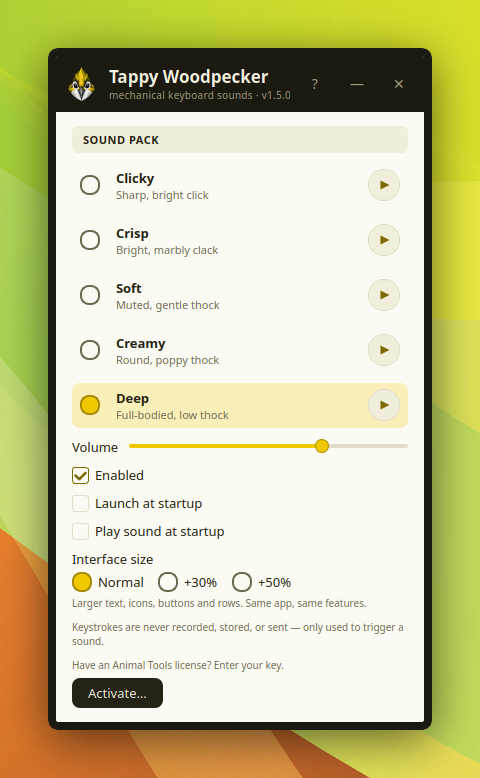
Switch to Deep for a lower, fuller thock
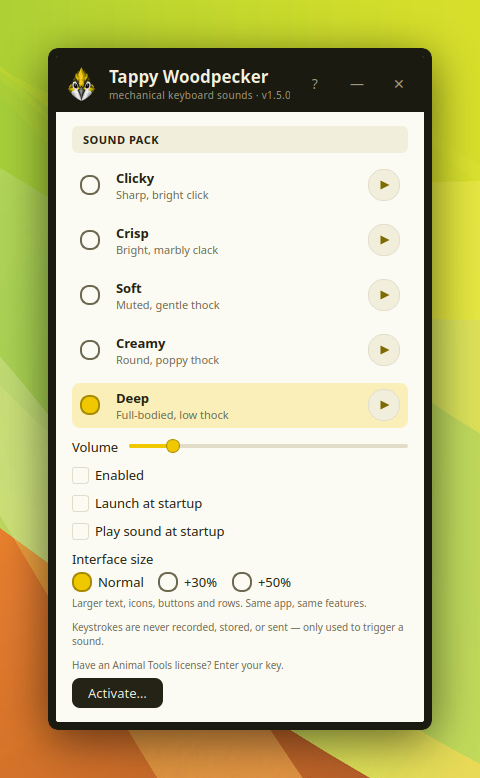
Turn the volume down, or switch the sound off with one click on Enabled